> ## Documentation Index
> Fetch the complete documentation index at: https://docs.agentsdr.ai/llms.txt
> Use this file to discover all available pages before exploring further.
# Email campaigns
> Build a multi-step email sequence, add leads, launch it, and see how sending, replies, bounces and unsubscribes are handled.
An email campaign sends a sequence of emails to a list of leads from your connected mailboxes. It sends slowly and inside working hours, and it stops for a lead as soon as that person replies, bounces or unsubscribes. You find campaigns under **Email → Campaigns**, on a page titled **Send campaigns**.
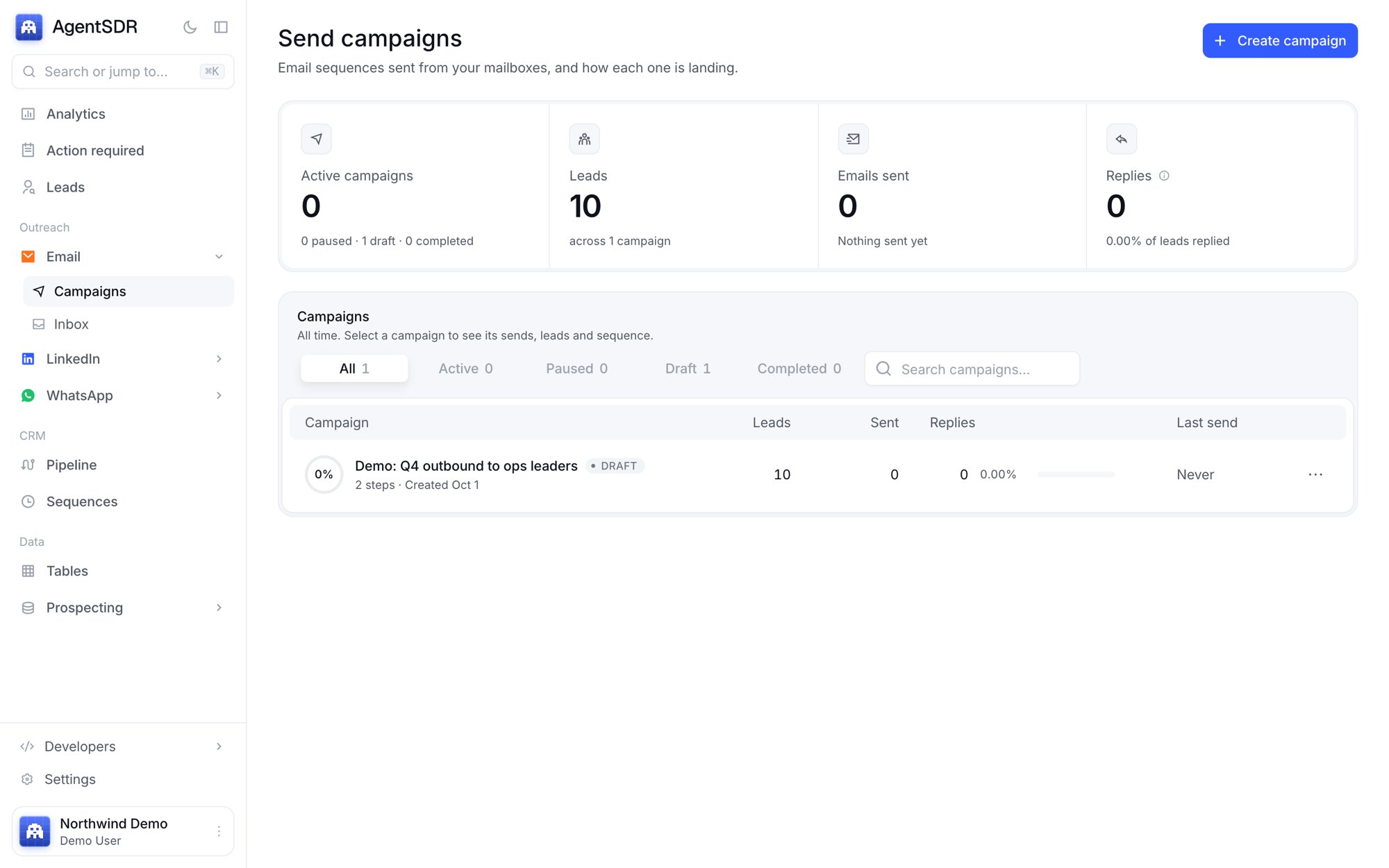 Before you start, [connect Google Workspace and add at least one mailbox](/email/connect). A campaign cannot launch without a connected mailbox.
## Create a campaign
Click **Create campaign**. The wizard has four steps, shown on the left: **Campaign details**, **Add leads**, **Build sequence** and **Review & launch**.
Enter a **Campaign name**, an internal name such as "Q3 Enterprise Outbound". A draft is saved when you continue. Going back edits the same draft instead of creating another.
Choose **Add from People** to reuse contacts already in your lead database (people already in the campaign are skipped), or **Upload CSV or XLSX**. For a file, you review a column mapping before anything is imported. See [Import leads](/leads/import) for the file format. Email is required.
After an import you see a summary: rows, imported, duplicate, suppressed and failed. Suppressed means the address is on the suppression list, so it is never imported into the campaign.
Write each email, set the waits between them, and preview it. Details below.
The review shows the lead count, the number of steps and how many mailboxes are connected. Click **Launch campaign**, or **Save as draft** to come back later.
**Launch campaign** is disabled until there is a connected mailbox, a complete sequence and at least one lead. You can also launch a draft from the campaign page.
## Build the sequence
The sequence editor lists each email as **Email step 1**, **Email step 2** and so on. Select a step to edit its **Subject** and **Email body**.
* Step 1 is the **Initial email**. It needs a subject.
* Click **Add follow-up** for more steps. Each follow-up has a **Wait** field: the number of days after the previous step it sends. New follow-ups default to 3 days, and the minimum is 1.
* Every step needs a body. **Save** is blocked with a message if one is empty.
* Click **Preview** on a step to see it rendered for a real lead and a real mailbox.
### Threading
Leave a follow-up's **Subject** blank ("Leave blank to continue the same thread") and it is sent as a reply in the same thread, with `Re:` added to the earlier subject. If you write a subject, that step is sent as a new, separate email.
### Merge fields
Click **Insert field** above the body to pick from a searchable list of fields. The list comes from the campaign's own leads, so every column of an uploaded file appears. Fields look like `{{firstName}}`.
Always available are `{{firstName}}`, `{{lastName}}` and `{{company}}`. Other things you can use include `{{email}}`, `{{title}}` and `{{companyDomain}}`, plus any extra column from your import. A column the importer does not recognise is turned into a camelCase key, so "Job Title" becomes `{{jobTitle}}`. Matching ignores upper and lower case.
A merge field with no value does not fail and is not left as text. It is replaced with an empty string, exactly like a lead with no first name. A missing value can leave "Hi ," in the email, so use **Preview** on several leads before you launch.
### Variants and signature
* `{A|B|C}` picks one option at random for each email, so emails to different leads are not identical.
* Click **Signature** to insert `%signature%`, which is replaced with the sending mailbox's [signature](/email/connect). With no placeholder, the signature is appended.
Every email also gets an unsubscribe link at the bottom, which you do not need to add yourself.
## How sending works
Sending is deliberately slow and spread out.
* **Mailboxes are one shared pool.** A campaign does not pick mailboxes. Every connected mailbox in your organization can send for any active campaign. New leads are shared across mailboxes in turn, and a lead then stays with the mailbox that sent its first email, so follow-ups come from the same address.
* **A queue is built once a day.** Each mailbox's queue for the day is filled first with follow-ups that are due (most overdue first), then with new leads, up to its daily limit. The daily counters also reset at that point.
* **Then emails go out one at a time.** About once a minute, each mailbox with queued leads sends one email, if it is outside its random gap (18 to 24 minutes by default) and inside its [sending hours](/email/connect).
* **Limits come from your rules.** Daily limits, gaps and hours are set in [Sending rules](/workspace/sending-rules).
Because the queue is built once a day, a campaign launched mid-day may not send until the next build. The build runs from a scheduled job on the server. On a self-hosted install, see [Self-hosting](/self-hosting) to confirm it is scheduled.
A step is sent at most once per lead. If sending fails, the email is marked **Failed** instead of being retried automatically, and the campaign's analytics show it under **Failed sends** with a hint to check the mailbox.
## Start, pause and resume
The campaign page header shows its status: **Draft**, **Active**, **Paused** or **Completed**.
* **Pause** stops further sends right away, including emails already queued for the day.
* **Resume** (on a paused campaign) starts it again.
* Campaigns can be deleted from the list.
Pausing does not change leads' positions. They continue from the step they were on.
## What stops a lead's sequence
A lead leaves the sequence, and nothing more is sent to them, when:
* **They reply.** When a reply from a lead arrives, the lead becomes **Replied**, their queued emails are removed, and the reply goes to [Action required](/crm/action-required). This applies to a reply on any channel, so an answer on LinkedIn also stops their email follow-ups. Reply detection needs the Gmail Pub/Sub topic described in [Connect email](/email/connect).
* **Their email bounces.** AgentSDR reads delivery failure reports in your mailbox, marks the lead **Bounced**, and adds the address to the suppression list. A temporary "delay" notice does not suppress anyone, because delivery may still succeed.
* **They unsubscribe.** Every email has an **Unsubscribe** link and a one-click unsubscribe header, so Gmail and Outlook can show their own button. Either way the address is added to the suppression list and the lead becomes **Suppressed**.
* **They are marked Do Not Contact** anywhere in your workspace. This is checked again right before each send.
* **The sequence ends.** After the last step the lead becomes **Completed**.
A suppressed address is never mailed again from any campaign in your organization.
## Track results
Open a campaign for three tabs.
* **Analytics**: leads, contacted, emails sent, replied, bounced and failed sends, where leads stand, send activity over time and sends by step. Replies are counted for the campaign as a whole, not per step.
* **Leads**: filter by **Pending**, **In sequence**, **Replied**, **Completed**, **Bounced** or **Suppressed**, search by name, email or company, and import more leads.
* **Sequence**: edit the steps. Changing a sequence on a live campaign affects the steps that have not yet sent.
The cards above the tabs show follow-ups due today, new leads reached today and when the next email is due.
## Related
Mailboxes, signatures, sending hours.
Read and answer replies.
Daily limits and gaps.
Compliance and deliverability.
This documentation is built and hosted on [Mintlify](https://mintlify.com), a developer documentation platform.
Before you start, [connect Google Workspace and add at least one mailbox](/email/connect). A campaign cannot launch without a connected mailbox.
## Create a campaign
Click **Create campaign**. The wizard has four steps, shown on the left: **Campaign details**, **Add leads**, **Build sequence** and **Review & launch**.
Enter a **Campaign name**, an internal name such as "Q3 Enterprise Outbound". A draft is saved when you continue. Going back edits the same draft instead of creating another.
Choose **Add from People** to reuse contacts already in your lead database (people already in the campaign are skipped), or **Upload CSV or XLSX**. For a file, you review a column mapping before anything is imported. See [Import leads](/leads/import) for the file format. Email is required.
After an import you see a summary: rows, imported, duplicate, suppressed and failed. Suppressed means the address is on the suppression list, so it is never imported into the campaign.
Write each email, set the waits between them, and preview it. Details below.
The review shows the lead count, the number of steps and how many mailboxes are connected. Click **Launch campaign**, or **Save as draft** to come back later.
**Launch campaign** is disabled until there is a connected mailbox, a complete sequence and at least one lead. You can also launch a draft from the campaign page.
## Build the sequence
The sequence editor lists each email as **Email step 1**, **Email step 2** and so on. Select a step to edit its **Subject** and **Email body**.
* Step 1 is the **Initial email**. It needs a subject.
* Click **Add follow-up** for more steps. Each follow-up has a **Wait** field: the number of days after the previous step it sends. New follow-ups default to 3 days, and the minimum is 1.
* Every step needs a body. **Save** is blocked with a message if one is empty.
* Click **Preview** on a step to see it rendered for a real lead and a real mailbox.
### Threading
Leave a follow-up's **Subject** blank ("Leave blank to continue the same thread") and it is sent as a reply in the same thread, with `Re:` added to the earlier subject. If you write a subject, that step is sent as a new, separate email.
### Merge fields
Click **Insert field** above the body to pick from a searchable list of fields. The list comes from the campaign's own leads, so every column of an uploaded file appears. Fields look like `{{firstName}}`.
Always available are `{{firstName}}`, `{{lastName}}` and `{{company}}`. Other things you can use include `{{email}}`, `{{title}}` and `{{companyDomain}}`, plus any extra column from your import. A column the importer does not recognise is turned into a camelCase key, so "Job Title" becomes `{{jobTitle}}`. Matching ignores upper and lower case.
A merge field with no value does not fail and is not left as text. It is replaced with an empty string, exactly like a lead with no first name. A missing value can leave "Hi ," in the email, so use **Preview** on several leads before you launch.
### Variants and signature
* `{A|B|C}` picks one option at random for each email, so emails to different leads are not identical.
* Click **Signature** to insert `%signature%`, which is replaced with the sending mailbox's [signature](/email/connect). With no placeholder, the signature is appended.
Every email also gets an unsubscribe link at the bottom, which you do not need to add yourself.
## How sending works
Sending is deliberately slow and spread out.
* **Mailboxes are one shared pool.** A campaign does not pick mailboxes. Every connected mailbox in your organization can send for any active campaign. New leads are shared across mailboxes in turn, and a lead then stays with the mailbox that sent its first email, so follow-ups come from the same address.
* **A queue is built once a day.** Each mailbox's queue for the day is filled first with follow-ups that are due (most overdue first), then with new leads, up to its daily limit. The daily counters also reset at that point.
* **Then emails go out one at a time.** About once a minute, each mailbox with queued leads sends one email, if it is outside its random gap (18 to 24 minutes by default) and inside its [sending hours](/email/connect).
* **Limits come from your rules.** Daily limits, gaps and hours are set in [Sending rules](/workspace/sending-rules).
Because the queue is built once a day, a campaign launched mid-day may not send until the next build. The build runs from a scheduled job on the server. On a self-hosted install, see [Self-hosting](/self-hosting) to confirm it is scheduled.
A step is sent at most once per lead. If sending fails, the email is marked **Failed** instead of being retried automatically, and the campaign's analytics show it under **Failed sends** with a hint to check the mailbox.
## Start, pause and resume
The campaign page header shows its status: **Draft**, **Active**, **Paused** or **Completed**.
* **Pause** stops further sends right away, including emails already queued for the day.
* **Resume** (on a paused campaign) starts it again.
* Campaigns can be deleted from the list.
Pausing does not change leads' positions. They continue from the step they were on.
## What stops a lead's sequence
A lead leaves the sequence, and nothing more is sent to them, when:
* **They reply.** When a reply from a lead arrives, the lead becomes **Replied**, their queued emails are removed, and the reply goes to [Action required](/crm/action-required). This applies to a reply on any channel, so an answer on LinkedIn also stops their email follow-ups. Reply detection needs the Gmail Pub/Sub topic described in [Connect email](/email/connect).
* **Their email bounces.** AgentSDR reads delivery failure reports in your mailbox, marks the lead **Bounced**, and adds the address to the suppression list. A temporary "delay" notice does not suppress anyone, because delivery may still succeed.
* **They unsubscribe.** Every email has an **Unsubscribe** link and a one-click unsubscribe header, so Gmail and Outlook can show their own button. Either way the address is added to the suppression list and the lead becomes **Suppressed**.
* **They are marked Do Not Contact** anywhere in your workspace. This is checked again right before each send.
* **The sequence ends.** After the last step the lead becomes **Completed**.
A suppressed address is never mailed again from any campaign in your organization.
## Track results
Open a campaign for three tabs.
* **Analytics**: leads, contacted, emails sent, replied, bounced and failed sends, where leads stand, send activity over time and sends by step. Replies are counted for the campaign as a whole, not per step.
* **Leads**: filter by **Pending**, **In sequence**, **Replied**, **Completed**, **Bounced** or **Suppressed**, search by name, email or company, and import more leads.
* **Sequence**: edit the steps. Changing a sequence on a live campaign affects the steps that have not yet sent.
The cards above the tabs show follow-ups due today, new leads reached today and when the next email is due.
## Related
Mailboxes, signatures, sending hours.
Read and answer replies.
Daily limits and gaps.
Compliance and deliverability.
This documentation is built and hosted on [Mintlify](https://mintlify.com), a developer documentation platform.