> ## Documentation Index
> Fetch the complete documentation index at: https://docs.agentsdr.ai/llms.txt
> Use this file to discover all available pages before exploring further.
# Gmail reply sync
> Set up Google Cloud Pub/Sub so replies to your outreach reach AgentSDR within moments and stop the sequence.
Sending email works as soon as [Google Workspace](/integrations/google-workspace) is connected. Replies do not arrive until you also set up Pub/Sub. AgentSDR only learns about new mail when Gmail pushes a notification to it, so without this page, replies are not picked up and a sequence keeps going after someone answers.
**What you need**
* [Google Workspace](/integrations/google-workspace) already connected, with the same Google Cloud project.
* Permission to create Pub/Sub topics and edit their access in that project.
* A public **HTTPS** address for your AgentSDR (your `BETTER_AUTH_URL`) with a valid certificate. A `localhost` install cannot receive pushes.
* Ability to schedule one daily call to AgentSDR ([Production setup](/self-hosting/production)).
* About 15 minutes.
## Overview
Gmail does not call you when mail arrives, unless you ask it to. AgentSDR asks Gmail to "watch" each connected mailbox's inbox and publish to a Pub/Sub topic. A push subscription forwards each notification to AgentSDR, which fetches the new messages, matches them to the lead and moves the conversation along in the CRM.
```mermaid theme={null}
flowchart LR
A[Lead replies in Gmail] --> B[Gmail watch]
B --> C[Pub/Sub topic]
C --> D[Push subscription]
D --> E["AgentSDR /api/outreach/webhooks/gmail-watch"]
E --> F[Fetch new mail, match lead]
F --> G[CRM conversation, sequence stops]
```
A Gmail watch expires after about seven days. Google's documentation says to call `watch` at least every 7 days and recommends once a day. AgentSDR does this when you call its renewal endpoint, so you schedule that endpoint daily (step 5).
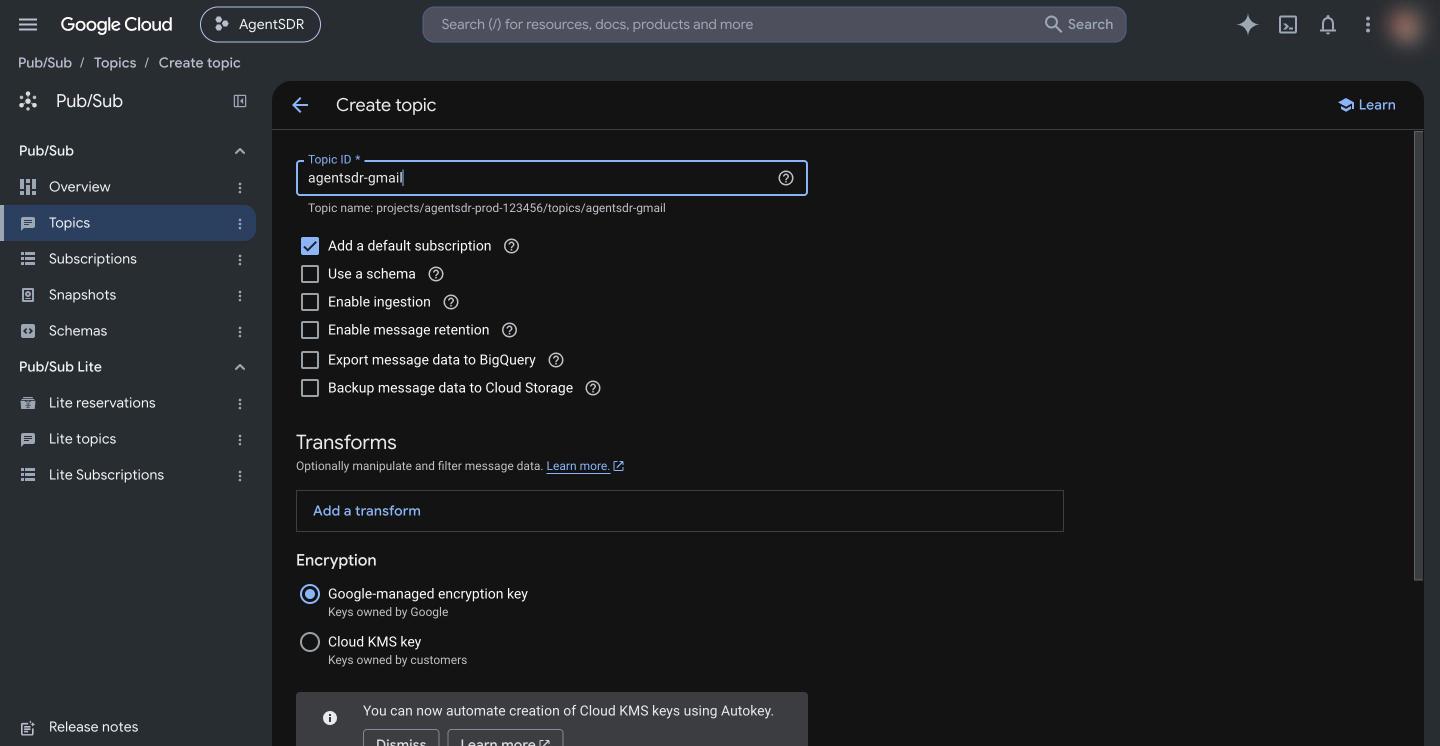
In the [Google Cloud console](https://console.cloud.google.com) pick the same project you used for Workspace, open **Pub/Sub → Topics** and click **Create topic**. Enter a Topic ID such as `agentsdr-gmail`. You can untick **Add a default subscription**, because you create a push subscription in step 4. Click **Create topic**.
The topic's full name is `projects//topics/`, for example `projects/my-project/topics/agentsdr-gmail`. You can copy it from the topic page.
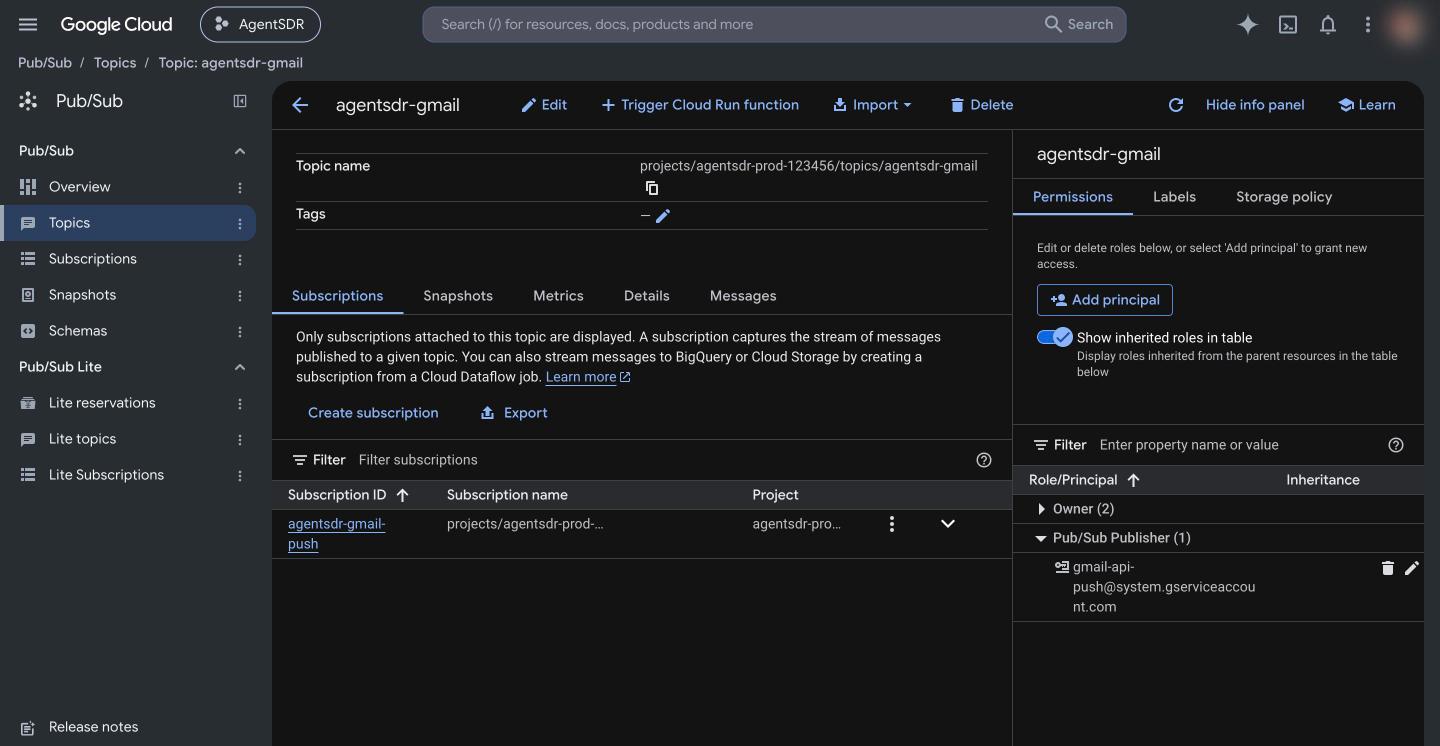
 Open the topic, show the **Permissions** panel (the info panel on the right, or the **Permissions** tab), click **Add principal** and enter:
```text theme={null}
gmail-api-push@system.gserviceaccount.com
```
Choose the role **Pub/Sub Publisher** and save. This is a Google-owned account; it is how Gmail is allowed to write notifications to your topic. Without it, registering a watch fails.
Open the topic, show the **Permissions** panel (the info panel on the right, or the **Permissions** tab), click **Add principal** and enter:
```text theme={null}
gmail-api-push@system.gserviceaccount.com
```
Choose the role **Pub/Sub Publisher** and save. This is a Google-owned account; it is how Gmail is allowed to write notifications to your topic. Without it, registering a watch fails.
 Open **Settings → Email → Connection**, click **Edit** on the **Google Workspace** card and paste the full name into **Gmail Pub/Sub topic**, for example `projects/my-project/topics/agentsdr-gmail`. Leave **Private key** blank to keep the saved key. Click **Save**. AgentSDR refuses a value that does not match `projects//topics/`.
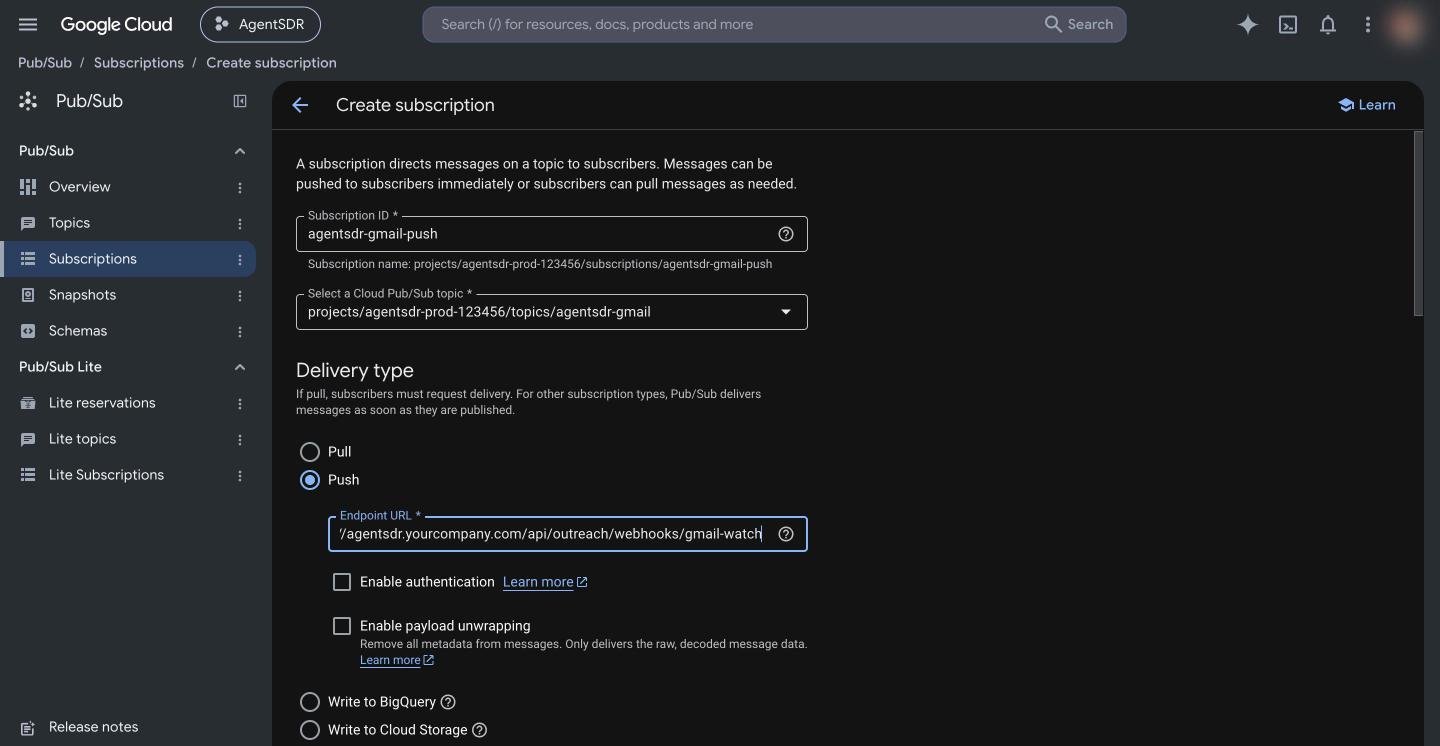
Open **Pub/Sub → Subscriptions** and click **Create subscription**. Enter a Subscription ID (for example `agentsdr-gmail-push`), select your topic, and set **Delivery type** to **Push**. In **Endpoint URL** enter:
```text theme={null}
https:///api/outreach/webhooks/gmail-watch
```
Replace `` with your public address (the same host as `BETTER_AUTH_URL`). Google requires a publicly reachable HTTPS endpoint with a certificate from a certificate authority. Leave the other options at their defaults and click **Create**.
There is no secret to add. Pub/Sub push cannot carry one, so the endpoint only acts on addresses that are connected mailboxes in AgentSDR and acknowledges everything else. See [Pub/Sub push docs](https://docs.cloud.google.com/pubsub/docs/create-push-subscription).
Open **Settings → Email → Connection**, click **Edit** on the **Google Workspace** card and paste the full name into **Gmail Pub/Sub topic**, for example `projects/my-project/topics/agentsdr-gmail`. Leave **Private key** blank to keep the saved key. Click **Save**. AgentSDR refuses a value that does not match `projects//topics/`.
Open **Pub/Sub → Subscriptions** and click **Create subscription**. Enter a Subscription ID (for example `agentsdr-gmail-push`), select your topic, and set **Delivery type** to **Push**. In **Endpoint URL** enter:
```text theme={null}
https:///api/outreach/webhooks/gmail-watch
```
Replace `` with your public address (the same host as `BETTER_AUTH_URL`). Google requires a publicly reachable HTTPS endpoint with a certificate from a certificate authority. Leave the other options at their defaults and click **Create**.
There is no secret to add. Pub/Sub push cannot carry one, so the endpoint only acts on addresses that are connected mailboxes in AgentSDR and acknowledges everything else. See [Pub/Sub push docs](https://docs.cloud.google.com/pubsub/docs/create-push-subscription).
 AgentSDR registers the watches when this endpoint is called, not when you add a mailbox. Call it once now, then every day:
```bash theme={null}
curl -fsS -X POST -H "x-tick-secret: $OUTREACH_TICK_SECRET" "https:///api/outreach/mailboxes/watch"
```
The secret is your `OUTREACH_TICK_SECRET` (sent as the `x-tick-secret` header or `?secret=`). Without it the endpoint answers 401. The reply lists each mailbox with `ok: true`, or an `error`. Organizations that have no topic saved are listed under `skipped` with `gmail_watch_topic_not_configured`. How to schedule it with cron or your host's scheduler is in [Production setup](/self-hosting/production).
## Check that it works
1. Run the renewal call from step 5 and confirm your mailbox shows `"ok": true`.
2. From a different address, reply to an email sent from that mailbox (or just send it a new message).
3. Within a short time the message appears in the CRM under [Action required](/crm/action-required) or the [Email inbox](/email/inbox).
In Google Cloud, **Pub/Sub → Subscriptions → your subscription → Metrics** shows messages being delivered, and no growing backlog of unacknowledged ones.
A local install (`localhost`) cannot receive pushes, because Google's servers cannot reach it. Test this on your deployed instance.
## Troubleshooting
The field holds something else, such as just the topic name. Use the full name from the topic page.
Gmail could not publish to your topic. Check step 2: the principal `gmail-api-push@system.gserviceaccount.com` must have **Pub/Sub Publisher** on that exact topic, and the topic must be in the project named in the field.
No topic is saved on the Google Workspace card. Do step 3.
Google Workspace is not connected for that organization. See [Google Workspace](/integrations/google-workspace).
`OUTREACH_TICK_SECRET` is unset, or the value you sent differs. It is set in your environment, see [Configuration](/configuration).
The watch expired because the daily job is not running. Schedule step 5 and run it once by hand.
The endpoint is not reachable over HTTPS, the certificate is invalid, or a firewall blocks Google. Open the URL path from outside your network; a `POST` should answer 200. Note that AgentSDR answers 200 even for pushes it ignores, so only unreachable endpoints cause retries.
## Next
Schedule the daily jobs.
Where replies show up.
Work through replies that need an answer.
The service account this builds on.
This documentation is built and hosted on [Mintlify](https://mintlify.com), a developer documentation platform.
AgentSDR registers the watches when this endpoint is called, not when you add a mailbox. Call it once now, then every day:
```bash theme={null}
curl -fsS -X POST -H "x-tick-secret: $OUTREACH_TICK_SECRET" "https:///api/outreach/mailboxes/watch"
```
The secret is your `OUTREACH_TICK_SECRET` (sent as the `x-tick-secret` header or `?secret=`). Without it the endpoint answers 401. The reply lists each mailbox with `ok: true`, or an `error`. Organizations that have no topic saved are listed under `skipped` with `gmail_watch_topic_not_configured`. How to schedule it with cron or your host's scheduler is in [Production setup](/self-hosting/production).
## Check that it works
1. Run the renewal call from step 5 and confirm your mailbox shows `"ok": true`.
2. From a different address, reply to an email sent from that mailbox (or just send it a new message).
3. Within a short time the message appears in the CRM under [Action required](/crm/action-required) or the [Email inbox](/email/inbox).
In Google Cloud, **Pub/Sub → Subscriptions → your subscription → Metrics** shows messages being delivered, and no growing backlog of unacknowledged ones.
A local install (`localhost`) cannot receive pushes, because Google's servers cannot reach it. Test this on your deployed instance.
## Troubleshooting
The field holds something else, such as just the topic name. Use the full name from the topic page.
Gmail could not publish to your topic. Check step 2: the principal `gmail-api-push@system.gserviceaccount.com` must have **Pub/Sub Publisher** on that exact topic, and the topic must be in the project named in the field.
No topic is saved on the Google Workspace card. Do step 3.
Google Workspace is not connected for that organization. See [Google Workspace](/integrations/google-workspace).
`OUTREACH_TICK_SECRET` is unset, or the value you sent differs. It is set in your environment, see [Configuration](/configuration).
The watch expired because the daily job is not running. Schedule step 5 and run it once by hand.
The endpoint is not reachable over HTTPS, the certificate is invalid, or a firewall blocks Google. Open the URL path from outside your network; a `POST` should answer 200. Note that AgentSDR answers 200 even for pushes it ignores, so only unreachable endpoints cause retries.
## Next
Schedule the daily jobs.
Where replies show up.
Work through replies that need an answer.
The service account this builds on.
This documentation is built and hosted on [Mintlify](https://mintlify.com), a developer documentation platform.