> ## Documentation Index
> Fetch the complete documentation index at: https://docs.agentsdr.ai/llms.txt
> Use this file to discover all available pages before exploring further.
# Google Workspace
> Connect a Google Cloud service account to your Workspace domain so AgentSDR can send email from, and read, your team's Gmail mailboxes.
Email in AgentSDR works through one Google Cloud service account that your Workspace admin authorises to act as your mailboxes. You set it up once per organization. Until it is connected, email accounts, email campaigns and reply sync are off.
**What you need**
* A Google Workspace domain (a free personal `@gmail.com` account does not work).
* Someone with a **Workspace super admin** account, who does the Admin console part (step 6). Only super admins can set up domain-wide delegation.
* Someone who can create a project and a service account in **Google Cloud** (project owner or similar). To create the key you need the Service Account Key Admin role.
* An AgentSDR owner or admin, to save the credentials.
* About 15 minutes. Google says delegation changes can take up to 24 hours to apply, though they are usually much quicker.
## Overview
AgentSDR never asks your reps to sign in to Google. Instead:
1. You create a **service account** (a robot identity) in Google Cloud and download its **JSON key**.
2. A Workspace super admin gives that service account permission, through **domain-wide delegation**, to act as users on your domain, limited to two Gmail scopes.
3. You give the key to AgentSDR. For each mailbox you add, AgentSDR asks Google for a token that says "this service account, acting as `rep@yourcompany.com`", then sends and reads Gmail with it.
Why delegation exists: a service account is not a person and has no mailbox of its own. Google only lets it touch a user's Gmail if an admin has explicitly allowed it for that domain. That one admin approval replaces a password or consent screen for every mailbox. It is also why this page needs two consoles: Google Cloud creates the identity, the Admin console grants it access.
It powers three things in AgentSDR: sending (campaign emails go out through Gmail's send API), the mailbox list (**Settings → Email → Mailboxes**), and reading replies. Reading replies in real time needs one more piece, covered in [Gmail reply sync](/integrations/gmail-reply-sync).
The two scopes AgentSDR requests, as read from the code, are `gmail.send` (send mail) and `gmail.readonly` (read mail, test a mailbox, register reply notifications). It cannot delete mail or change settings.
Open the [Google Cloud console](https://console.cloud.google.com), click the project picker at the top, and choose **New project** (or pick an existing project you control). Give it a name such as `agentsdr`. Note the **project ID**; you will use it again for [reply sync](/integrations/gmail-reply-sync).
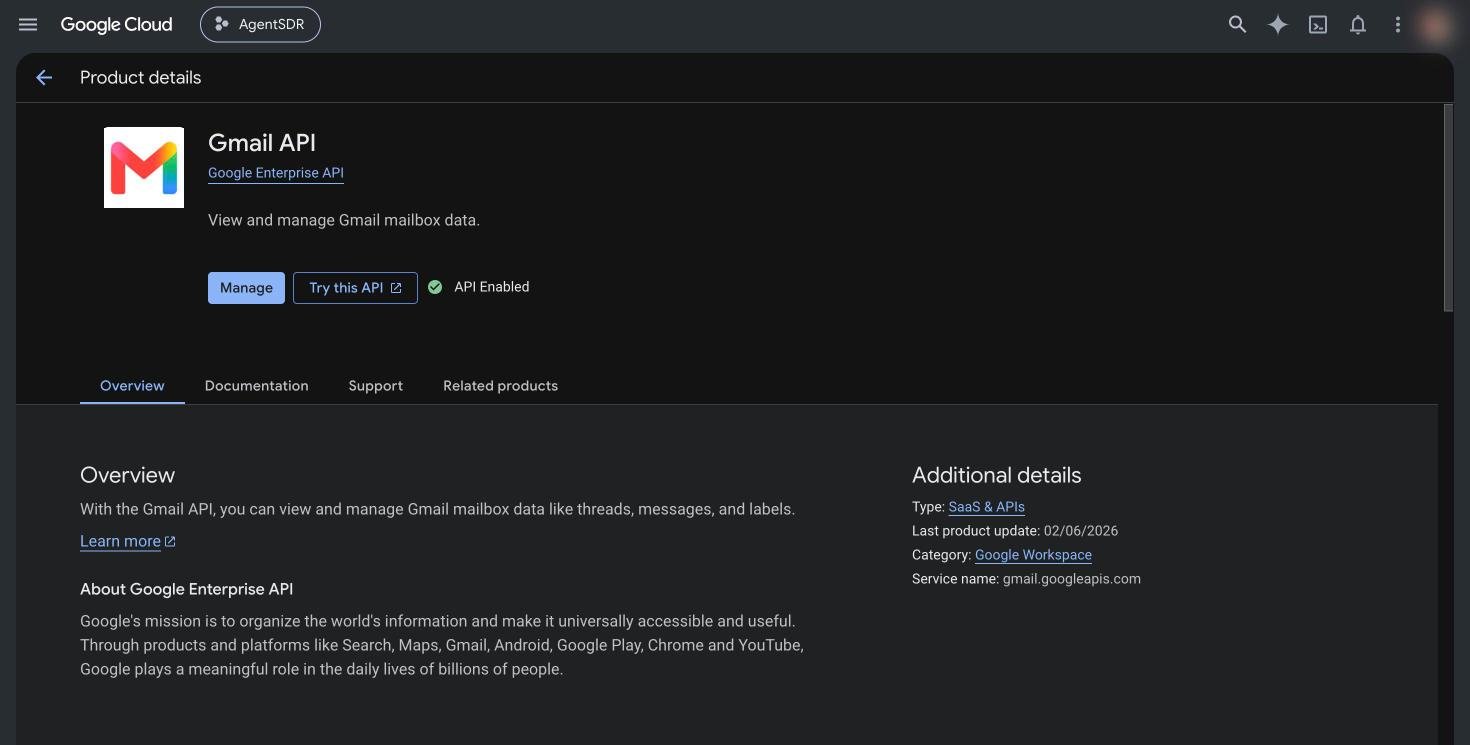
With that project selected, open **APIs & Services → Library**, search for **Gmail API**, open it and click **Enable**. If you skip this, Gmail calls fail later with a "Gmail API has not been used" error.
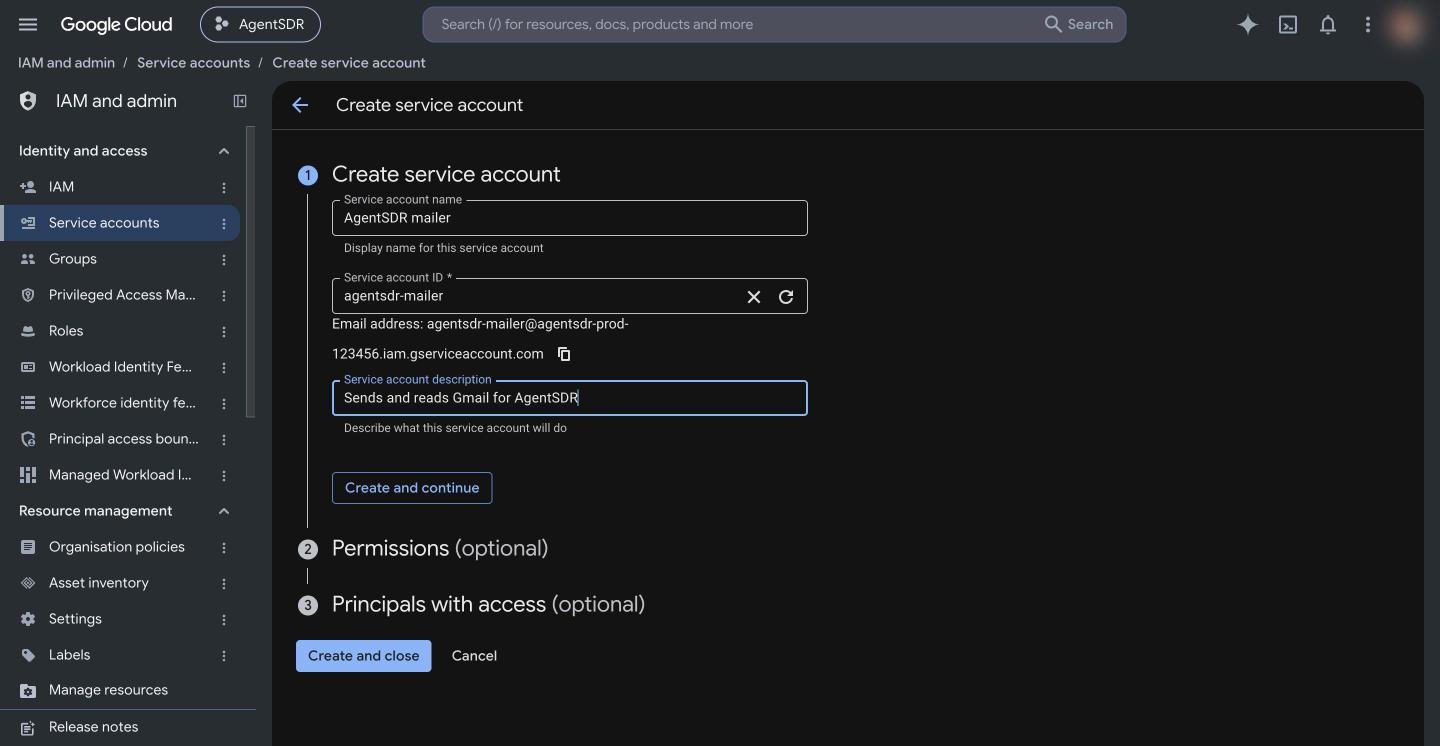
 Open **IAM & Admin → Service accounts** and click **Create service account**. Enter a name (for example `agentsdr`) and click **Create and continue**.
**Do not grant it any roles.** Skip the optional steps and click **Done**. Roles in Google Cloud control access to Cloud resources. AgentSDR only needs the service account to prove its identity; what it can do in Gmail is decided by the Admin console delegation in step 6. (AgentSDR's own check on save only asks Google for a token for the service account, which needs no role.)
Open **IAM & Admin → Service accounts** and click **Create service account**. Enter a name (for example `agentsdr`) and click **Create and continue**.
**Do not grant it any roles.** Skip the optional steps and click **Done**. Roles in Google Cloud control access to Cloud resources. AgentSDR only needs the service account to prove its identity; what it can do in Gmail is decided by the Admin console delegation in step 6. (AgentSDR's own check on save only asks Google for a token for the service account, which needs no role.)
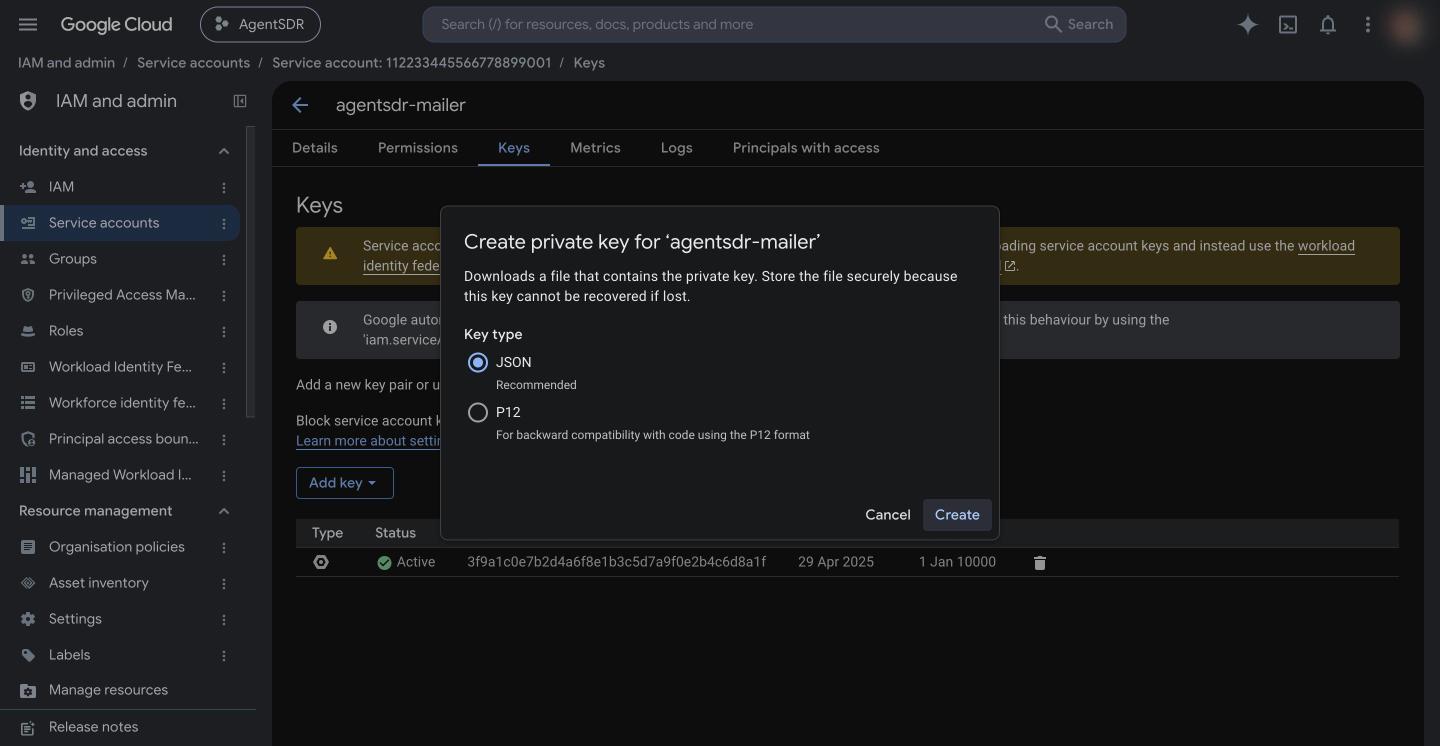
 Click the new service account's email, open the **Keys** tab, click **Add key → Create new key**, choose **JSON** and click **Create**. A `.json` file downloads. Google cannot show it to you again.
 This file is a password for your whole domain's delegated access. Keep it out of email, chat and git. After you upload it to AgentSDR, store it in a password manager or delete it.
Organizations created after 3 May 2024 enforce the policy `iam.disableServiceAccountKeyCreation` by default, so **Create new key** fails or is greyed out. A Google Cloud Organization Policy Administrator has to allow it:
1. In the console, open **IAM & Admin → Organization Policies** for your organization and find **Disable service account key creation**.
2. Either turn enforcement off for the project that holds your service account, or (Google's recommended way) create a tag, tag only that project, and set the policy to not enforce for resources with that tag.
3. Retry step 4.
Google's walkthrough: [Create and delete service account keys](https://docs.cloud.google.com/iam/docs/keys-create-delete). If you are not an organization admin, send that link to one. Re-enable the policy afterwards if you want it on for everything else.
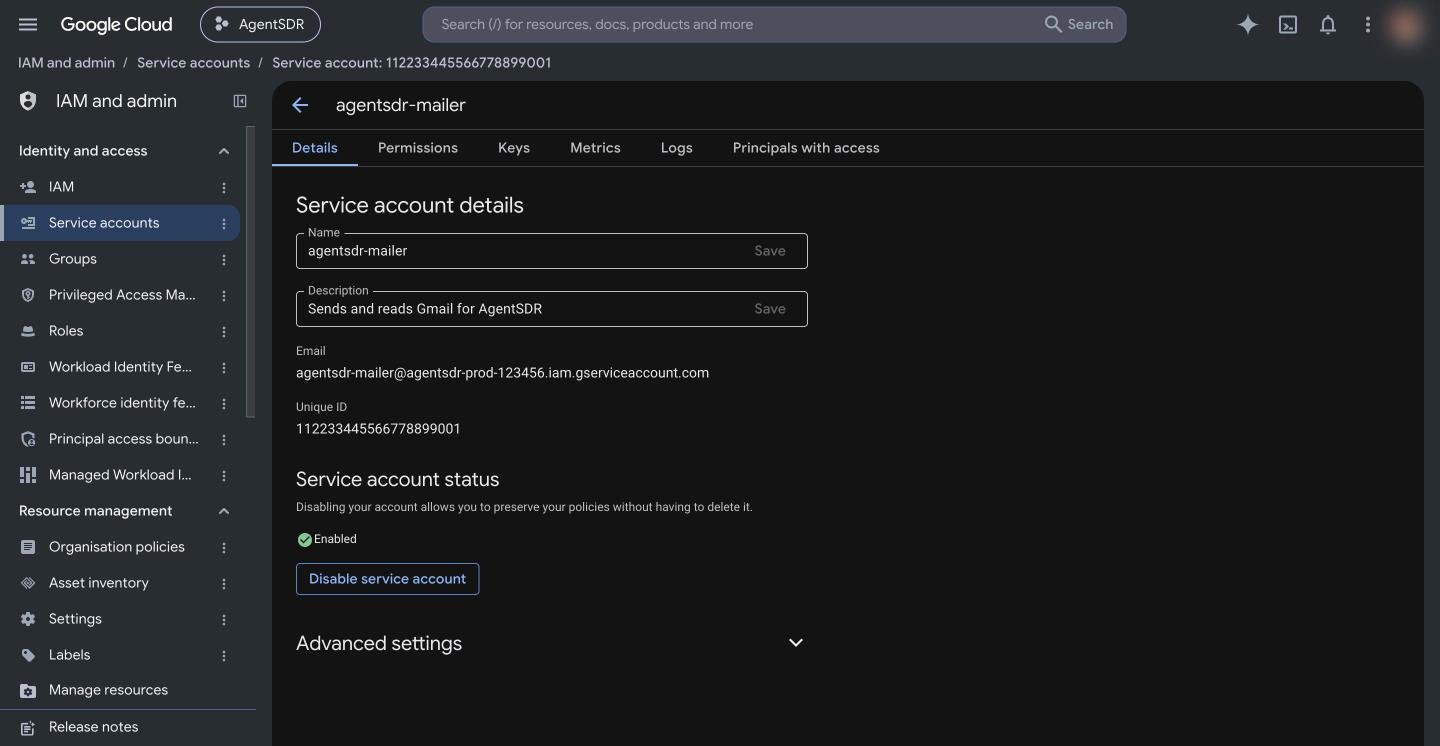
Open the service account's **Details** tab and copy its **Unique ID**, a long number such as `112233445566778899001`. This is the **Client ID** the Admin console asks for. The Client ID is also the `client_id` field in the JSON key file.
This file is a password for your whole domain's delegated access. Keep it out of email, chat and git. After you upload it to AgentSDR, store it in a password manager or delete it.
Organizations created after 3 May 2024 enforce the policy `iam.disableServiceAccountKeyCreation` by default, so **Create new key** fails or is greyed out. A Google Cloud Organization Policy Administrator has to allow it:
1. In the console, open **IAM & Admin → Organization Policies** for your organization and find **Disable service account key creation**.
2. Either turn enforcement off for the project that holds your service account, or (Google's recommended way) create a tag, tag only that project, and set the policy to not enforce for resources with that tag.
3. Retry step 4.
Google's walkthrough: [Create and delete service account keys](https://docs.cloud.google.com/iam/docs/keys-create-delete). If you are not an organization admin, send that link to one. Re-enable the policy afterwards if you want it on for everything else.
Open the service account's **Details** tab and copy its **Unique ID**, a long number such as `112233445566778899001`. This is the **Client ID** the Admin console asks for. The Client ID is also the `client_id` field in the JSON key file.
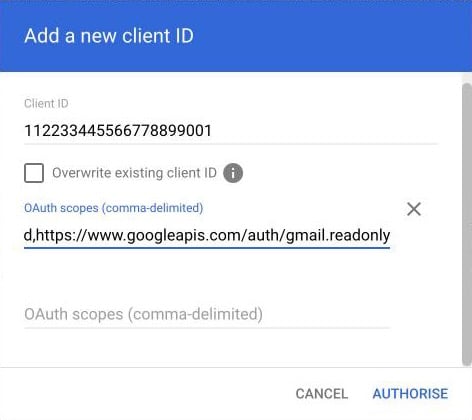
 Sign in to [admin.google.com](https://admin.google.com) as a super admin and go to **Security → Access and data control → API controls**, then click **Manage domain-wide delegation** and **Add new**.
* **Client ID**: the Unique ID from step 5.
* **OAuth scopes**: paste exactly this, as one line:
```text theme={null}
https://www.googleapis.com/auth/gmail.send,https://www.googleapis.com/auth/gmail.readonly
```
Click **Authorise**. AgentSDR's connect form has a Copy button on the same scope line.
Sign in to [admin.google.com](https://admin.google.com) as a super admin and go to **Security → Access and data control → API controls**, then click **Manage domain-wide delegation** and **Add new**.
* **Client ID**: the Unique ID from step 5.
* **OAuth scopes**: paste exactly this, as one line:
```text theme={null}
https://www.googleapis.com/auth/gmail.send,https://www.googleapis.com/auth/gmail.readonly
```
Click **Authorise**. AgentSDR's connect form has a Copy button on the same scope line.
 Google says changes can take up to 24 hours but typically happen more quickly. If a mailbox test fails right after this step with `unauthorized_client`, wait a few minutes and try again.
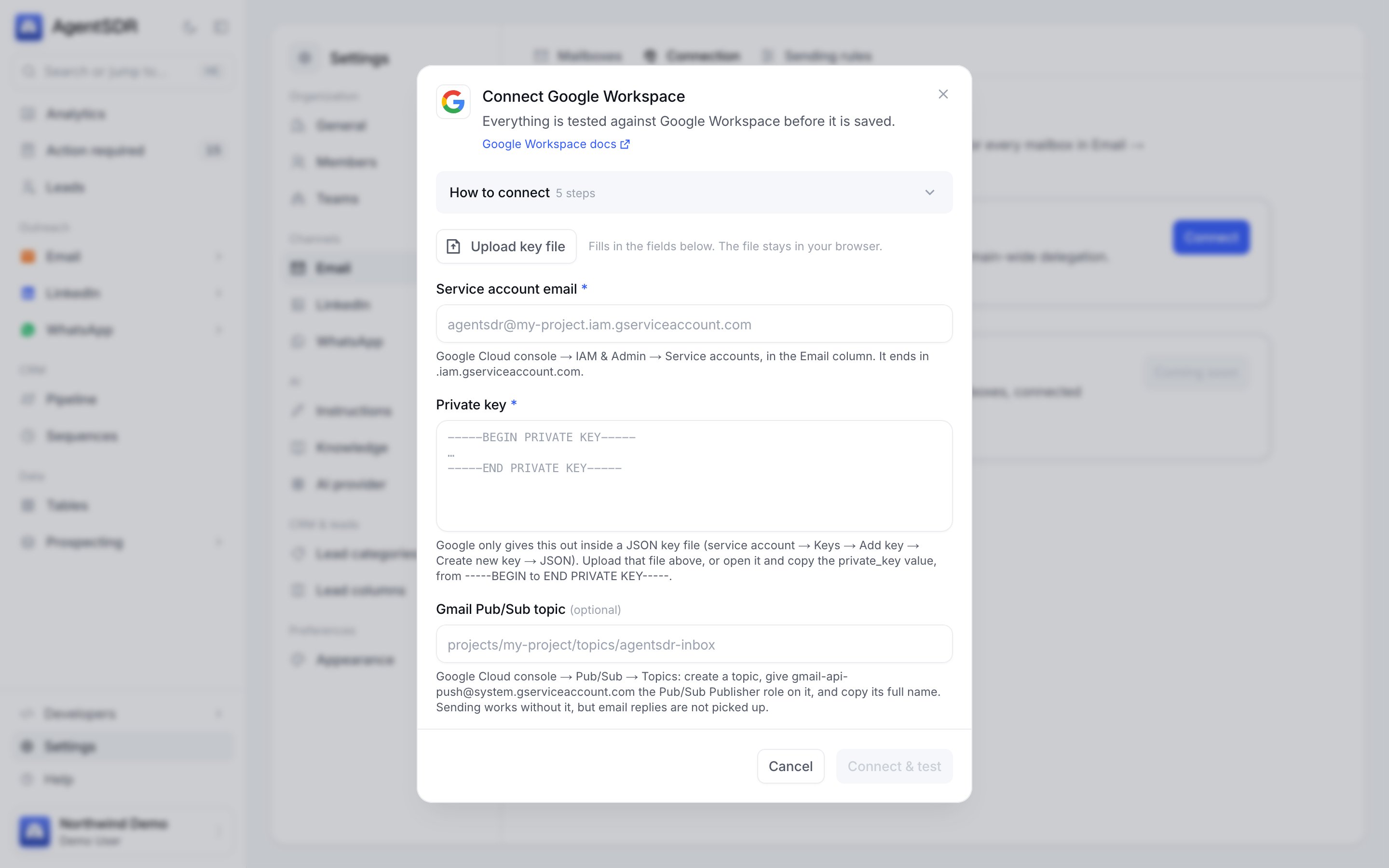
In AgentSDR open **Settings → Email → Connection**. On the **Google Workspace** card click **Connect** (owners and admins only).
* Click **Upload key file** and choose the JSON from step 4. It fills **Service account email** and **Private key** and stays in your browser. You can also paste both by hand.
* Leave **Gmail Pub/Sub topic** empty for now. You add it in [Gmail reply sync](/integrations/gmail-reply-sync).
* Click **Connect & test**.
Google says changes can take up to 24 hours but typically happen more quickly. If a mailbox test fails right after this step with `unauthorized_client`, wait a few minutes and try again.
In AgentSDR open **Settings → Email → Connection**. On the **Google Workspace** card click **Connect** (owners and admins only).
* Click **Upload key file** and choose the JSON from step 4. It fills **Service account email** and **Private key** and stays in your browser. You can also paste both by hand.
* Leave **Gmail Pub/Sub topic** empty for now. You add it in [Gmail reply sync](/integrations/gmail-reply-sync).
* Click **Connect & test**.
 On save AgentSDR makes one live call: it asks Google for a token for the service account using your key. That proves the key is genuine and not revoked. It cannot prove delegation, because delegation is checked per mailbox in the next step. If a Pub/Sub topic is filled in it must look like `projects//topics/`. The saved key is encrypted at rest and belongs to your organization only.
Open **Settings → Email → Mailboxes**, click **Add mailbox**, enter a real Workspace address (for example `rep@yourcompany.com`), and click **Connect & test**. AgentSDR acts as that user and reads their Gmail profile, which proves delegation works for that address. You see **Mailbox connected**, or **The connection test failed** with Google's message. More on mailboxes in [Connect email](/email/connect).
## Check that it works
* The **Google Workspace** card on **Settings → Email → Connection** shows **Connected** and a **Last verified** time.
* A mailbox on **Settings → Email → Mailboxes** has the status **Connected**. If not, use its **...** menu, **Test connection**.
* Use the **...** menu, **Send test email** on a connected mailbox, and check that the message arrives.
## Troubleshooting
The key could not get a token. Common causes: the key was deleted in Google Cloud, you pasted the wrong value, or the service account was disabled. Create a fresh JSON key (step 4) and upload it.
You entered something other than the service account's email. Use the address from the **Email** column on the Service accounts page, or upload the key file.
The pasted key is cut off. Upload the JSON file instead, or copy the whole `private_key` value. AgentSDR tolerates the surrounding quotes and literal `\n` characters.
The file is not the JSON key of a service account. Download one from the service account's **Keys** tab. The file must contain `"type": "service_account"`.
Google does not accept this service account for that user. Check in **Manage domain-wide delegation** that the Client ID is the service account's **Unique ID** (not its email or the project ID), that both scopes are present with no spaces or typos, and that you are not still inside the propagation window (up to 24 hours, usually minutes).
One of the scopes is not authorised in the Admin console. Edit the delegation entry and paste the full scope line from step 6.
Google has no such user to impersonate. The address must be an existing, active user on your Workspace domain (an alias, a group, a different domain or a suspended user fails). Fix the address and click **Test again**.
Step 2 was skipped, or done in a different project from the one that owns the service account. Enable the Gmail API in the project where the service account lives and retry after a minute.
The organization policy in step 4 blocks key creation. See the note under that step.
A Gmail address can belong to only one AgentSDR organization. Remove it from the other organization first.
Google is not connected for this organization, or someone clicked **Disconnect**. Background sending stops while it is disconnected, and there is no environment-variable fallback.
## Security notes
* The key is encrypted at rest with your instance's `INTEGRATION_CREDENTIALS_KEY` and is stored per organization. It is never sent back to the browser; when you edit the card, leave **Private key** blank to keep the saved one.
* Delegation is limited to the two scopes above. Review the entry in the Admin console from time to time and remove it if you stop using AgentSDR.
* To rotate: create a new JSON key (step 4), upload it on the **Connection** card and save, then delete the old key under the service account's **Keys** tab.
* Disconnecting in AgentSDR does not remove the delegation. Remove it in the Admin console too if you are done with it.
## Next
Get replies in real time through Pub/Sub.
Add mailboxes, signatures and sending hours.
Send your first sequence.
Every service AgentSDR connects to.
This documentation is built and hosted on [Mintlify](https://mintlify.com), a developer documentation platform.
On save AgentSDR makes one live call: it asks Google for a token for the service account using your key. That proves the key is genuine and not revoked. It cannot prove delegation, because delegation is checked per mailbox in the next step. If a Pub/Sub topic is filled in it must look like `projects//topics/`. The saved key is encrypted at rest and belongs to your organization only.
Open **Settings → Email → Mailboxes**, click **Add mailbox**, enter a real Workspace address (for example `rep@yourcompany.com`), and click **Connect & test**. AgentSDR acts as that user and reads their Gmail profile, which proves delegation works for that address. You see **Mailbox connected**, or **The connection test failed** with Google's message. More on mailboxes in [Connect email](/email/connect).
## Check that it works
* The **Google Workspace** card on **Settings → Email → Connection** shows **Connected** and a **Last verified** time.
* A mailbox on **Settings → Email → Mailboxes** has the status **Connected**. If not, use its **...** menu, **Test connection**.
* Use the **...** menu, **Send test email** on a connected mailbox, and check that the message arrives.
## Troubleshooting
The key could not get a token. Common causes: the key was deleted in Google Cloud, you pasted the wrong value, or the service account was disabled. Create a fresh JSON key (step 4) and upload it.
You entered something other than the service account's email. Use the address from the **Email** column on the Service accounts page, or upload the key file.
The pasted key is cut off. Upload the JSON file instead, or copy the whole `private_key` value. AgentSDR tolerates the surrounding quotes and literal `\n` characters.
The file is not the JSON key of a service account. Download one from the service account's **Keys** tab. The file must contain `"type": "service_account"`.
Google does not accept this service account for that user. Check in **Manage domain-wide delegation** that the Client ID is the service account's **Unique ID** (not its email or the project ID), that both scopes are present with no spaces or typos, and that you are not still inside the propagation window (up to 24 hours, usually minutes).
One of the scopes is not authorised in the Admin console. Edit the delegation entry and paste the full scope line from step 6.
Google has no such user to impersonate. The address must be an existing, active user on your Workspace domain (an alias, a group, a different domain or a suspended user fails). Fix the address and click **Test again**.
Step 2 was skipped, or done in a different project from the one that owns the service account. Enable the Gmail API in the project where the service account lives and retry after a minute.
The organization policy in step 4 blocks key creation. See the note under that step.
A Gmail address can belong to only one AgentSDR organization. Remove it from the other organization first.
Google is not connected for this organization, or someone clicked **Disconnect**. Background sending stops while it is disconnected, and there is no environment-variable fallback.
## Security notes
* The key is encrypted at rest with your instance's `INTEGRATION_CREDENTIALS_KEY` and is stored per organization. It is never sent back to the browser; when you edit the card, leave **Private key** blank to keep the saved one.
* Delegation is limited to the two scopes above. Review the entry in the Admin console from time to time and remove it if you stop using AgentSDR.
* To rotate: create a new JSON key (step 4), upload it on the **Connection** card and save, then delete the old key under the service account's **Keys** tab.
* Disconnecting in AgentSDR does not remove the delegation. Remove it in the Admin console too if you are done with it.
## Next
Get replies in real time through Pub/Sub.
Add mailboxes, signatures and sending hours.
Send your first sequence.
Every service AgentSDR connects to.
This documentation is built and hosted on [Mintlify](https://mintlify.com), a developer documentation platform.