> ## Documentation Index
> Fetch the complete documentation index at: https://docs.agentsdr.ai/llms.txt
> Use this file to discover all available pages before exploring further.
# Leads
> See every person and company in your workspace with their reachability, campaign enrollment and CRM state, and search or filter them.
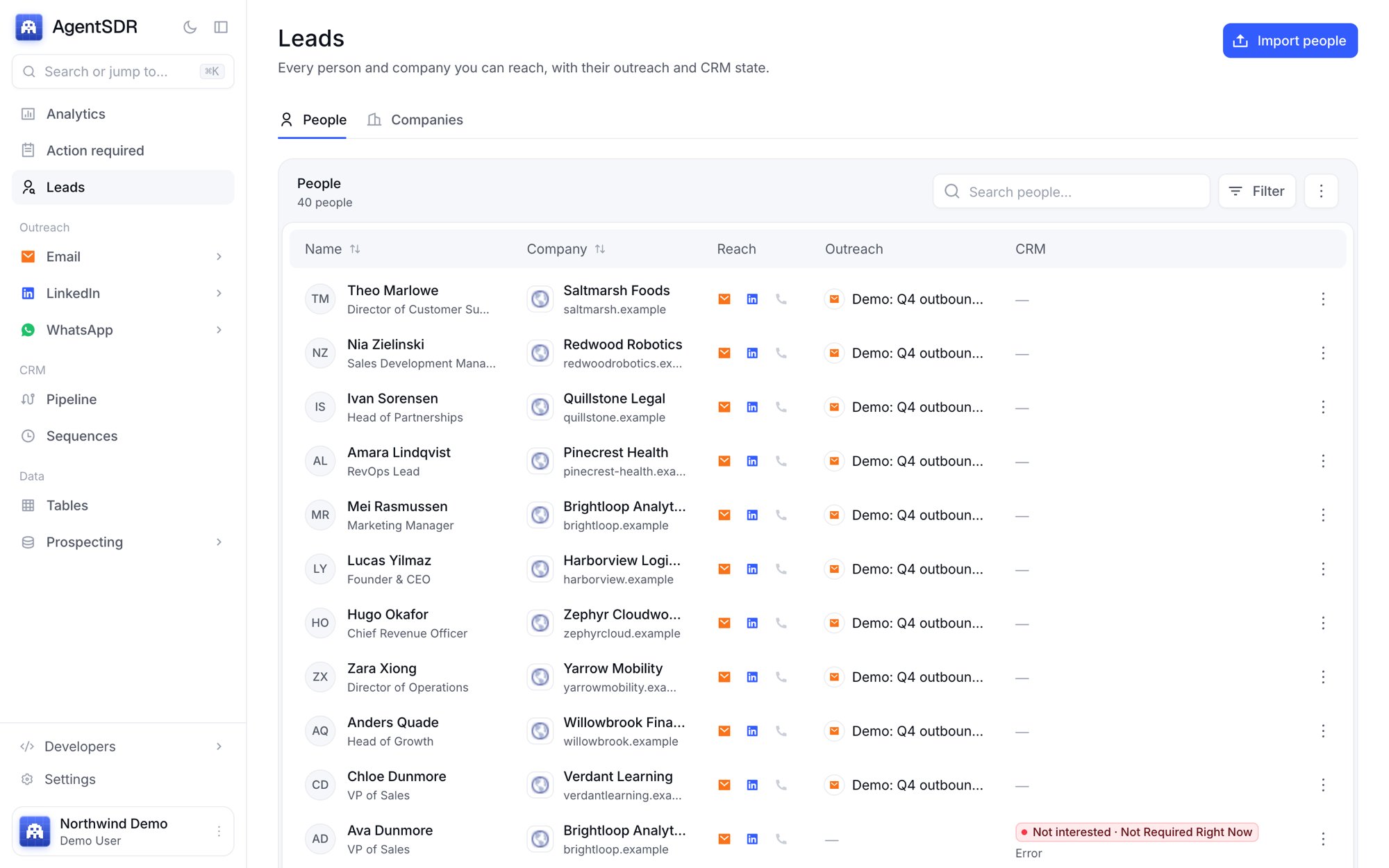
The **Leads** page is the one list of everyone you can reach. A person or company exists here once, no matter how many campaigns on any channel they belong to. Use it to check who you have, who is already in outreach, and who has replied.
 Leads belong to your [organization](/workspace/organizations). Someone in another organization never sees them, and you never see theirs.
## People and Companies
Two tabs sit under the page title: **People** and **Companies**. Your tab choice is kept in the address (`?tab=companies`), so you can bookmark it.
### The People tab
Each row is one person, 25 per page, with these columns:
| Column | What it shows |
| - | - |
| **Name** | Name and job title. Shows "Unnamed person" when no name is stored. |
| **Company** | The company's favicon, name and domain, or "No company". |
| **Reach** | Three icons: email, LinkedIn and phone. A coloured icon means you have it. A faint icon means you don't. |
| **Outreach** | The campaign they are in. When they are in several, an active campaign is shown first, with "+N" for the rest. Hover for the full list with each campaign's status. |
| **CRM** | Their CRM category and stage, plus a note such as "Action required", "Paused" or "Next action" when it needs your attention. |
The reach icons are shortcuts. Click the email or phone icon to copy the value. Click the LinkedIn icon to open the profile in a new tab.
The **...** menu at the end of a row can open the CRM record, open the LinkedIn profile, copy the email, or copy the phone number.
A person only gets a CRM record after a reply. Until then the **CRM** column shows a dash and clicking the row does nothing. Once they have a record, clicking the row opens it. See [CRM overview](/crm/overview).
### The Companies tab
Each row is a company, identified by its domain. Columns are **Company**, **People** (how many people you have there), **Outreach**, **Links** (website and LinkedIn page) and **Updated**.
Click a company to jump to the People tab, searched by that company's domain. Companies are created as people are imported, so this tab is empty until you have people.
## Search
The search box searches the current tab.
* **People:** email, LinkedIn URL, name, title, company name and domain, plus any extra imported columns.
* **Companies:** name, domain and their extra imported data.
Results update as you type.
## Filter people
Click **Filter** on the People tab. A badge shows how many filters are on, and **Clear all** resets them.
* **Campaign:** All campaigns, Email campaigns, LinkedIn campaigns, or Not in campaign.
* **CRM category:** Customer, Interested, Not interested or Other.
* **Subcategory:** the stages under the category you picked.
* **CRM state:** unclassified, classifying, action required, waiting, idle, paused, closed or error.
* **Has email** and **Has LinkedIn:** only people you can reach on that channel.
* **AI changed:** people whose AI classification changed and hasn't been acknowledged yet.
## Sort
Open the **More options** menu (three dots in the toolbar) and pick a sort. Click the same option again to flip the direction.
* **People:** Last updated, Date added, Name, Company, Title, Email.
* **Companies:** Last updated, Name, Domain, People.
The same menu has **Manage lead columns** (see [Custom fields](/leads/custom-fields)) and **Download import template** (see [Import leads](/leads/import)).
## Do Not Contact and suppression
The Leads page itself doesn't show a Do Not Contact flag. Two separate protections apply when you send, and both are enforced by the server, not just hidden in the UI.
* **Do Not Contact** is set on a person from their CRM record (**Mark do not contact**). It is global to the person, so it blocks sending on every channel. Sending from the CRM, email sequences and LinkedIn inbox replies all refuse a person marked this way. A WhatsApp send is refused too. Clear it from the same menu to allow sending again.
* **The suppression list** holds email addresses that must never receive outreach. Reasons are unsubscribed, bounced, manual and complaint. It is checked before every send, and email imports skip suppressed addresses so they never appear as campaign leads.
Do Not Contact and suppression exist to protect recipients and your sender reputation. Read [Responsible use](/responsible-use) before you send at volume.
## Related
Bring people in from a CSV or Excel file.
Add your own fields to people and companies.
What happens once someone replies.
Build and enrich lists before they become leads.
This documentation is built and hosted on [Mintlify](https://mintlify.com), a developer documentation platform.
Leads belong to your [organization](/workspace/organizations). Someone in another organization never sees them, and you never see theirs.
## People and Companies
Two tabs sit under the page title: **People** and **Companies**. Your tab choice is kept in the address (`?tab=companies`), so you can bookmark it.
### The People tab
Each row is one person, 25 per page, with these columns:
| Column | What it shows |
| - | - |
| **Name** | Name and job title. Shows "Unnamed person" when no name is stored. |
| **Company** | The company's favicon, name and domain, or "No company". |
| **Reach** | Three icons: email, LinkedIn and phone. A coloured icon means you have it. A faint icon means you don't. |
| **Outreach** | The campaign they are in. When they are in several, an active campaign is shown first, with "+N" for the rest. Hover for the full list with each campaign's status. |
| **CRM** | Their CRM category and stage, plus a note such as "Action required", "Paused" or "Next action" when it needs your attention. |
The reach icons are shortcuts. Click the email or phone icon to copy the value. Click the LinkedIn icon to open the profile in a new tab.
The **...** menu at the end of a row can open the CRM record, open the LinkedIn profile, copy the email, or copy the phone number.
A person only gets a CRM record after a reply. Until then the **CRM** column shows a dash and clicking the row does nothing. Once they have a record, clicking the row opens it. See [CRM overview](/crm/overview).
### The Companies tab
Each row is a company, identified by its domain. Columns are **Company**, **People** (how many people you have there), **Outreach**, **Links** (website and LinkedIn page) and **Updated**.
Click a company to jump to the People tab, searched by that company's domain. Companies are created as people are imported, so this tab is empty until you have people.
## Search
The search box searches the current tab.
* **People:** email, LinkedIn URL, name, title, company name and domain, plus any extra imported columns.
* **Companies:** name, domain and their extra imported data.
Results update as you type.
## Filter people
Click **Filter** on the People tab. A badge shows how many filters are on, and **Clear all** resets them.
* **Campaign:** All campaigns, Email campaigns, LinkedIn campaigns, or Not in campaign.
* **CRM category:** Customer, Interested, Not interested or Other.
* **Subcategory:** the stages under the category you picked.
* **CRM state:** unclassified, classifying, action required, waiting, idle, paused, closed or error.
* **Has email** and **Has LinkedIn:** only people you can reach on that channel.
* **AI changed:** people whose AI classification changed and hasn't been acknowledged yet.
## Sort
Open the **More options** menu (three dots in the toolbar) and pick a sort. Click the same option again to flip the direction.
* **People:** Last updated, Date added, Name, Company, Title, Email.
* **Companies:** Last updated, Name, Domain, People.
The same menu has **Manage lead columns** (see [Custom fields](/leads/custom-fields)) and **Download import template** (see [Import leads](/leads/import)).
## Do Not Contact and suppression
The Leads page itself doesn't show a Do Not Contact flag. Two separate protections apply when you send, and both are enforced by the server, not just hidden in the UI.
* **Do Not Contact** is set on a person from their CRM record (**Mark do not contact**). It is global to the person, so it blocks sending on every channel. Sending from the CRM, email sequences and LinkedIn inbox replies all refuse a person marked this way. A WhatsApp send is refused too. Clear it from the same menu to allow sending again.
* **The suppression list** holds email addresses that must never receive outreach. Reasons are unsubscribed, bounced, manual and complaint. It is checked before every send, and email imports skip suppressed addresses so they never appear as campaign leads.
Do Not Contact and suppression exist to protect recipients and your sender reputation. Read [Responsible use](/responsible-use) before you send at volume.
## Related
Bring people in from a CSV or Excel file.
Add your own fields to people and companies.
What happens once someone replies.
Build and enrich lists before they become leads.
This documentation is built and hosted on [Mintlify](https://mintlify.com), a developer documentation platform.