

- A Google Workspace domain (a free personal
@gmail.comaccount does not work). - Someone with a Workspace super admin account, who does the Admin console part (step 6). Only super admins can set up domain-wide delegation.
- Someone who can create a project and a service account in Google Cloud (project owner or similar). To create the key you need the Service Account Key Admin role.
- An AgentSDR owner or admin, to save the credentials.
- About 15 minutes. Google says delegation changes can take up to 24 hours to apply, though they are usually much quicker.
The whole setup in two minutes. Every step is written out below.
Overview
AgentSDR never asks your reps to sign in to Google. Instead:- You create a service account (a robot identity) in Google Cloud and download its JSON key.
- A Workspace super admin gives that service account permission, through domain-wide delegation, to act as users on your domain, limited to two Gmail scopes.
- You give the key to AgentSDR. For each mailbox you add, AgentSDR asks Google for a token that says “this service account, acting as
[email protected]”, then sends and reads Gmail with it.
gmail.send (send mail) and gmail.readonly (read mail, test a mailbox, register reply notifications). It cannot delete mail or change settings.
Create or choose a Google Cloud project
agentsdr. Note the project ID; you will use it again for reply sync.Enable the Gmail API
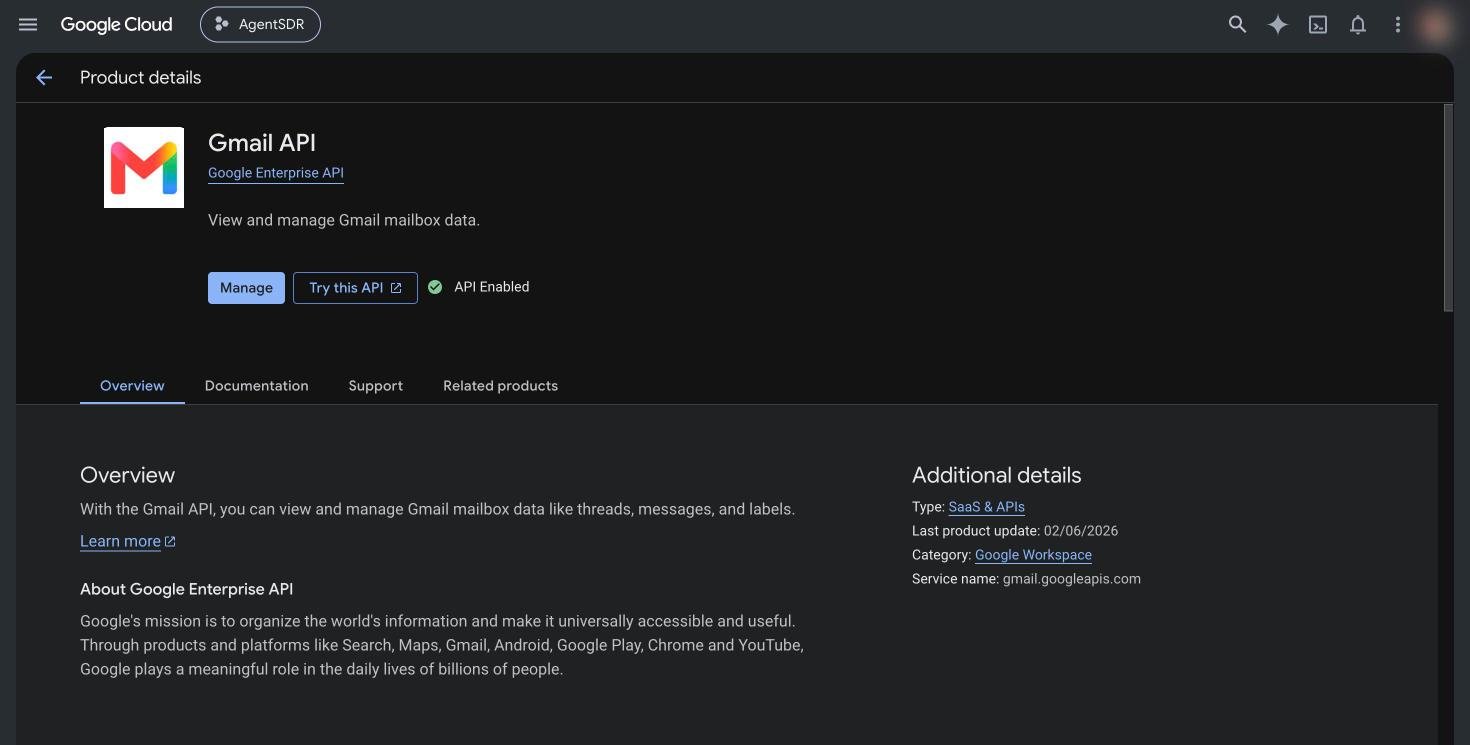
Gmail API in the API Library. If it is already on, you see Manage and API Enabled instead of Enable.
Create a service account
agentsdr) and click Create and continue.Do not grant it any roles. Skip the optional steps and click Done. Roles in Google Cloud control access to Cloud resources. AgentSDR only needs the service account to prove its identity; what it can do in Gmail is decided by the Admin console delegation in step 6. (AgentSDR’s own check on save only asks Google for a token for the service account, which needs no role.)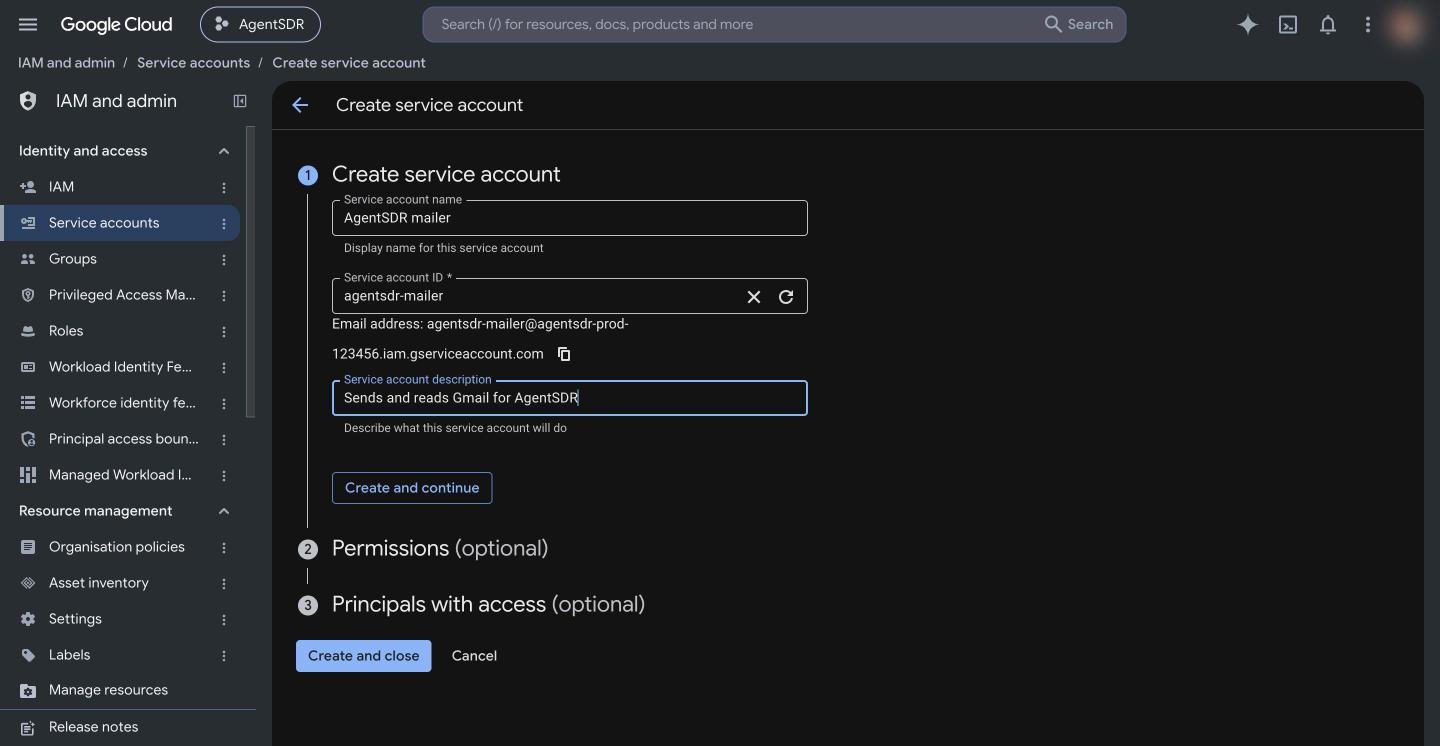
Only the name is required. The ID and email are generated from it.
Create a JSON key
.json file downloads. Google cannot show it to you again.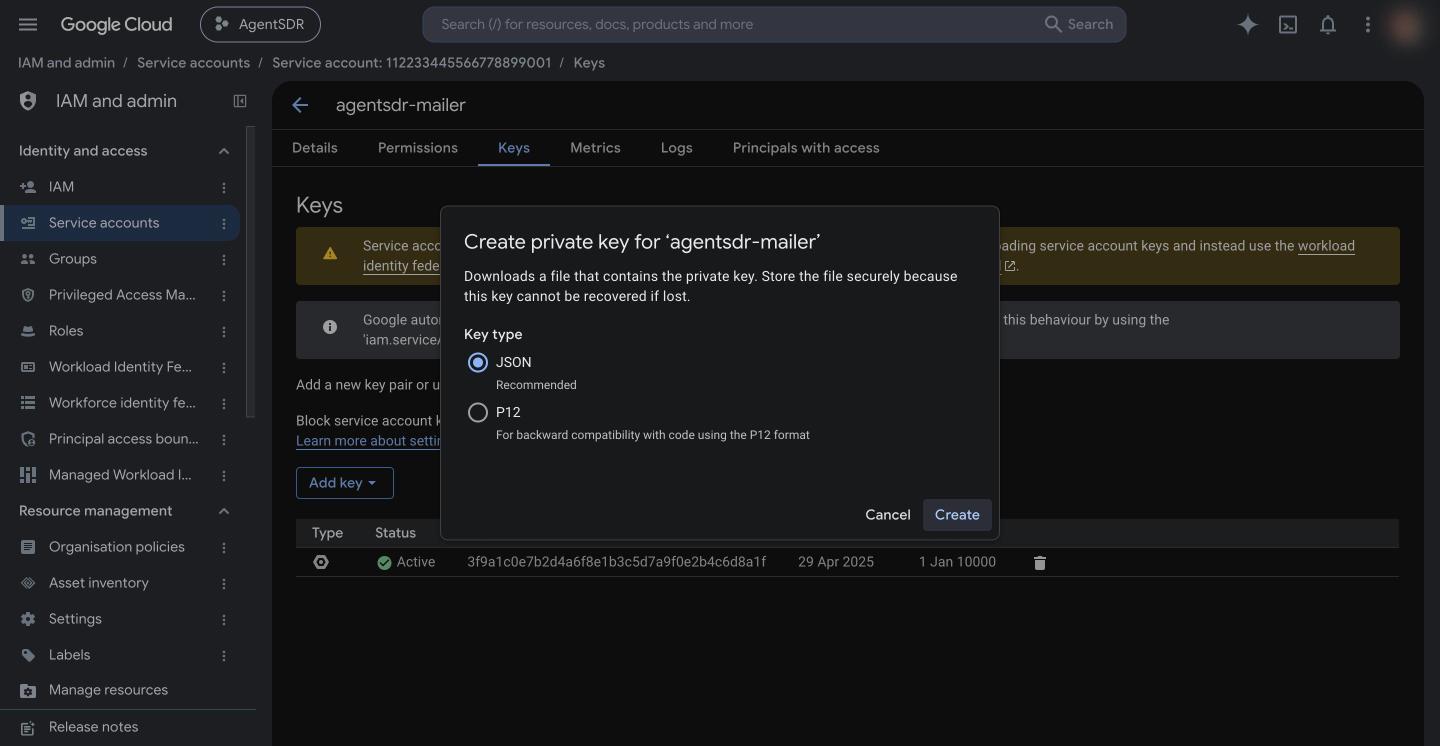
Keep JSON selected. Store the downloaded file somewhere safe until you upload it.
Key creation is blocked by an organization policy
Key creation is blocked by an organization policy
iam.disableServiceAccountKeyCreation by default, so Create new key fails or is greyed out. A Google Cloud Organization Policy Administrator has to allow it:- In the console, open IAM & Admin → Organization Policies for your organization and find Disable service account key creation.
- Either turn enforcement off for the project that holds your service account, or (Google’s recommended way) create a tag, tag only that project, and set the policy to not enforce for resources with that tag.
- Retry step 4.
Copy the service account's Client ID
112233445566778899001. This is the Client ID the Admin console asks for. The Client ID is also the client_id field in the JSON key file.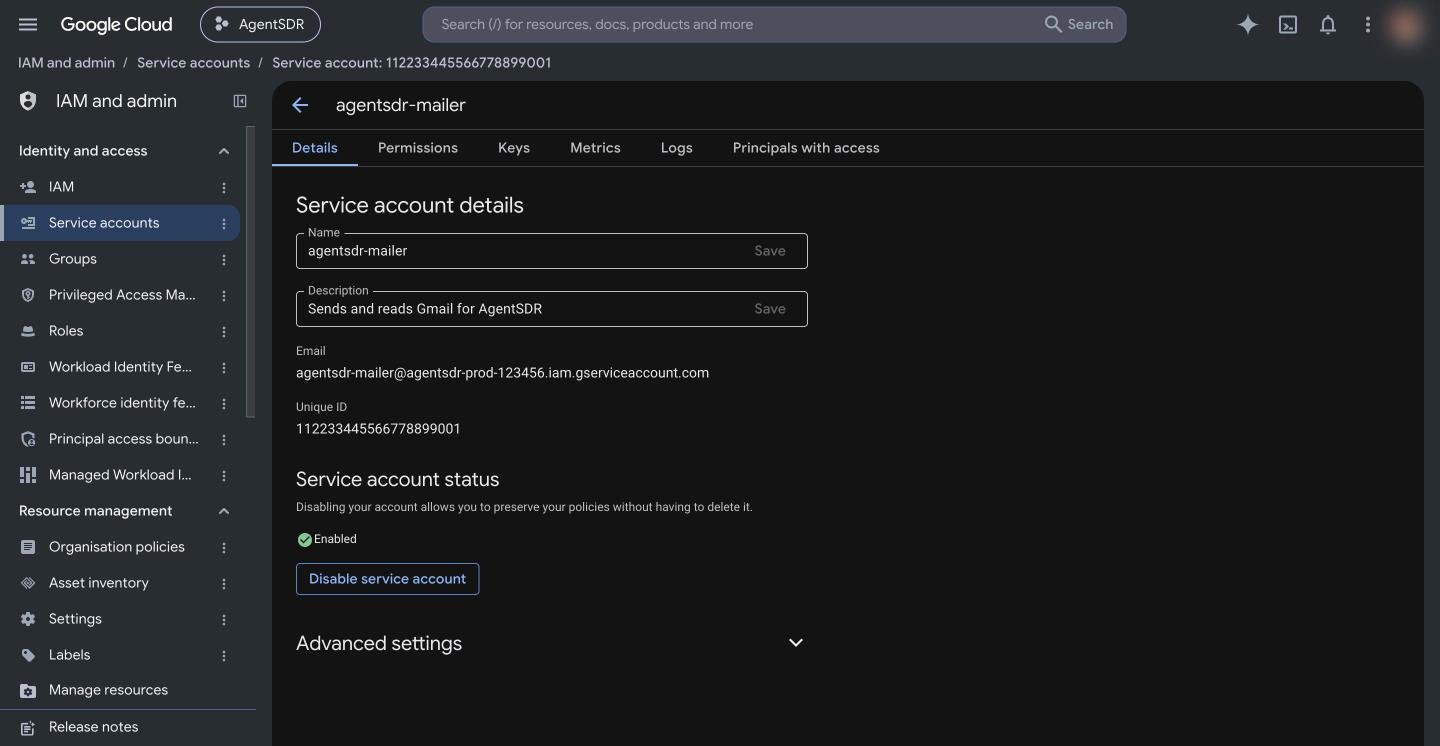
The Unique ID is the Client ID you paste into the Admin console.
Authorise it in the Google Admin console (super admin)
- Client ID: the Unique ID from step 5.
- OAuth scopes: paste exactly this, as one line:
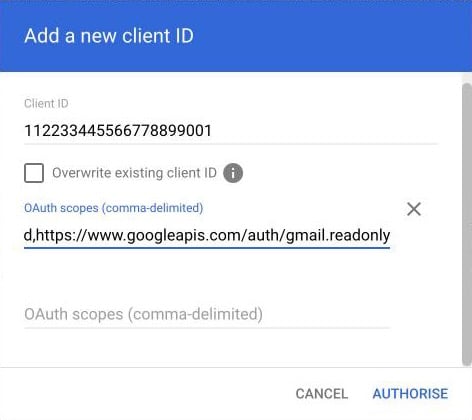
Add a new client ID: the service account's Unique ID, and both scopes on one line separated by a comma.
unauthorized_client, wait a few minutes and try again.Connect it in AgentSDR
- Click Upload key file and choose the JSON from step 4. It fills Service account email and Private key and stays in your browser. You can also paste both by hand.
- Leave Gmail Pub/Sub topic empty for now. You add it in Gmail reply sync.
- Click Connect & test.
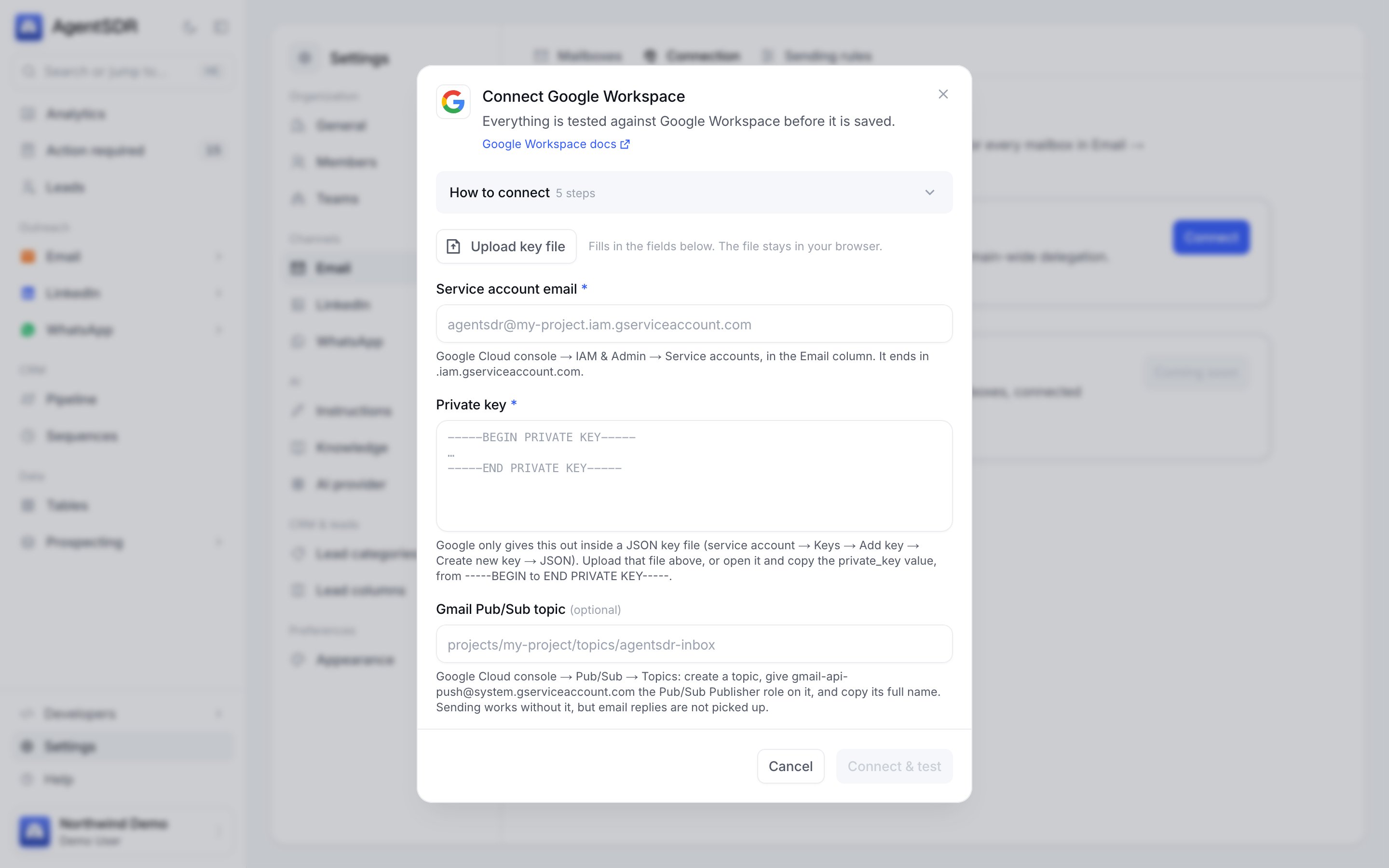
The dialog before a key file is uploaded.
projects/<project>/topics/<topic>. The saved key is encrypted at rest and belongs to your organization only.Add a mailbox
[email protected]), and click Connect & test. AgentSDR acts as that user and reads their Gmail profile, which proves delegation works for that address. You see Mailbox connected, or The connection test failed with Google’s message. More on mailboxes in Connect email.Check that it works
- The Google Workspace card on Settings → Email → Connection shows Connected and a Last verified time.
- A mailbox on Settings → Email → Mailboxes has the status Connected. If not, use its … menu, Test connection.
- Use the … menu, Send test email on a connected mailbox, and check that the message arrives.
Troubleshooting
Google rejected this service account key
Google rejected this service account key
Service account email must end in .iam.gserviceaccount.com
Service account email must end in .iam.gserviceaccount.com
Private key must run from -----BEGIN PRIVATE KEY----- to -----END PRIVATE KEY-----
Private key must run from -----BEGIN PRIVATE KEY----- to -----END PRIVATE KEY-----
private_key value. AgentSDR tolerates the surrounding quotes and literal \n characters.That file is not a service account key file
That file is not a service account key file
"type": "service_account".access_denied, or a scope error
access_denied, or a scope error
invalid_grant (for example invalid_grant: Invalid email or User ID)
invalid_grant (for example invalid_grant: Invalid email or User ID)
Gmail API has not been used in project ... before or it is disabled
Gmail API has not been used in project ... before or it is disabled
Service account key creation is disabled / constraints/iam.disableServiceAccountKeyCreation
Service account key creation is disabled / constraints/iam.disableServiceAccountKeyCreation
... is already connected to another organization
... is already connected to another organization
The email pages show Connect Google Workspace
The email pages show Connect Google Workspace
Security notes
- The key is encrypted at rest with your instance’s
INTEGRATION_CREDENTIALS_KEYand is stored per organization. It is never sent back to the browser; when you edit the card, leave Private key blank to keep the saved one. - Delegation is limited to the two scopes above. Review the entry in the Admin console from time to time and remove it if you stop using AgentSDR.
- To rotate: create a new JSON key (step 4), upload it on the Connection card and save, then delete the old key under the service account’s Keys tab.
- Disconnecting in AgentSDR does not remove the delegation. Remove it in the Admin console too if you are done with it.