

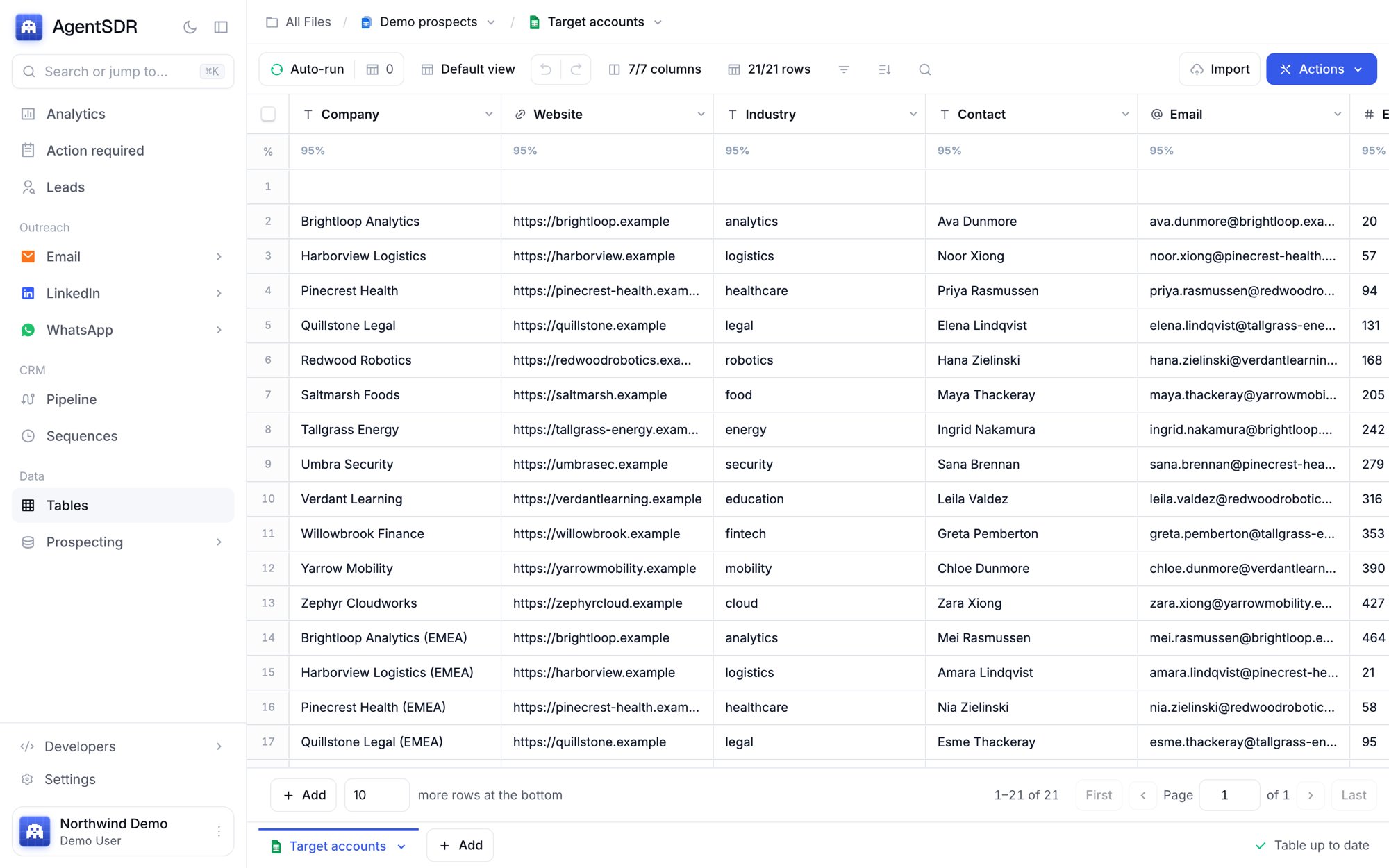
Workbooks, tables and folders
- A workbook is a file. It holds one or more tables, shown as tabs along the workbook (the code also calls them sheets).
- Workbooks live in folders. Open the New menu on the Tables page to create a Folder or a Workbook. Drag a row onto a folder or a breadcrumb to file it, or use Move to folder.
- Search the list with Search files…. Columns are Name, Created and Last updated.
- Everything belongs to your organization.
Create a workbook
Click New, then Workbook. In Create a workbook choose:- Blank workbook to start with an empty custom table.
- CSV or Excel to create a workbook from a spreadsheet (
.csv,.tsv,.txt,.xlsx,.xls).
Workbook and table menus
The workbook menu has Rename workbook, Edit workbook settings and Delete workbook. Duplicate, Add to favorites, Move workbook and View credit usage are shown but disabled. Each table tab has a menu with Rename, Edit table settings, Move left, Move right, Move to workbook…, Duplicate table and Delete. You can also drag tabs to reorder them.Add data
- Import: in a table, click Import (or Actions, then Import CSV or Excel). Choose a file, then use the mapping screen to decide, for each file column, how to import it or choose Skip this column. The importer guesses a type for each column, such as email, URL, checkbox, number or date, and falls back to text when the values disagree. One import is limited to 50,000 rows.
- Paste: paste straight into the grid. A paste is limited to 1,000 rows and 100 new columns. For anything larger use Import.
- Type: edit cells directly.
Column types
Actions, then Add column, offers the four you will use most: Add enrichment, Use AI, HTTP API and Formula. More column types… lists the rest.- Run columns: Add enrichment (providers), Use AI and HTTP API (AI and HTTP columns), Formula.
- Data columns: Text, Number, Currency, Date, URL, Email, Image from URL, Checkbox, Select, Multi-select, JSON.
Functions, Message, Waterfall and Merge columns appear in the menu but are disabled. They can’t be created yet, so there is no waterfall or fallback between providers today.
{{columnKey}} tokens. It supports JavaScript, FormulaJS, lodash and moment, and LOOKUP("Table", {{value}}, "Match column", "Return column") to read from another table. You can ask AI to generate the formula.
Running columns
Column cells are filled by a background worker, so you can keep working while they run.Start a run
Click the play button in a column header. The menu offers:- Run N selected rows (when rows are selected),
- Run first 10 rows on this page,
- Run all rows.
Auto-run
Each run column has an Auto-run option, on by default. A column set to auto-run is queued for a row automatically once all the columns it reads have a value. This is how a chain works: an enrichment finds an email, then a second column that reads the email starts by itself. The toolbar has an Auto-run toggle for the table and a counter showing how many cells are queued or running.Cell status
Each cell shows one of these states:
Click a cell in an enrichment or AI column to open Cell details: the provider, outcome, latency, when it ran, and the error if it failed.
Retries
A failed run is retried automatically up to 3 attempts in total, waiting 2 seconds, then 8 seconds, between attempts. Only the final failure shows on the cell. Some errors are not retried because they would fail the same way again: a bad URL, an HTTP 4xx response (other than 429), a missing environment variable, or a misconfigured account. Fix the cause, then run the cell again from the play button.Turn rows into a campaign
Select rows, open Actions, and choose Create campaign. In Create campaign from selected rows:- Choose the Channel (Email or LinkedIn) and a Campaign name.
- Map campaign fields to your table’s columns. Email needs an Email column. LinkedIn needs a LinkedIn URL column and can also take message columns for the invitation, acceptance and follow-ups.
- Click create.
Related
Enrichment providers
The 15 providers and what each can return.
AI and HTTP columns
Prompt a model or call any API per row.
Leads
Where the people from a campaign end up.
Email campaigns
Send to the list you built.